JA
ION logo
公式取扱説明書

Ion SnapCam - AM-W01

132 ページ·1.1 MB·ビデオカメラ·PDF·EN
Ion SnapCam - AM-W01
目次 2セクション EN-2.pdf · DE-2.pdf 表示非表示
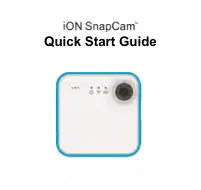
Page 1 of the Ion SnapCam - AM-W01 user manual — Quick Start Guide
1ページ · クリックして拡大
1ページ

Quick Start Guide

Ion SnapCam - AM-W01 — Quick Start Guide diagram (page 1)
図 1 · Quick Start Guide
Page 2 of the Ion SnapCam - AM-W01 user manual — 2. Key Features
2ページ · クリックして拡大
2ページ

SnapCam is a HD wearable camera. It allows users to take and

z Upload and Share Photos and Videos using built-in Wi-Fi

z Magnetic Clip included to wear on clothes, bags, hats etc.

share photos and videos on social media.

z Ultra Slim and Light-weight

z HD Video (720p @ 30fps)

2. Key Features

1. Introduction

z Auto rotate.

z 8mp Photos

Page 3 of the Ion SnapCam - AM-W01 user manual — EN-2.pdf
3ページ · クリックして拡大
3ページ
Ion SnapCam - AM-W01 — EN-2.pdf diagram (page 3)
図 2 · EN-2.pdf
1.Camera LED (Red)Indicate the cameras reaction 2.Wi-Fi LED (Blue)Indicate Wi-Fi status 3.Battery LED (Green)Indicate the camera battery status 4.LensWide angle lens 5.Power ButtonTurn on and off the camera Turn on and off the Wi-Fi Reset the camera 6.MagnetFor attaching your SnapCam to clothing etc. 7.Microphone
Page 4 of the Ion SnapCam - AM-W01 user manual — 4.1 Charging your SnapCam
4ページ · クリックして拡大
4ページ
8.MicroSD Card SlotFor MicroSD card 9.Micro USB PortConnection for charging and mass storage 10.Touch Panelactivate video, photo and live streaming. 11.Silicon BumperProtect the camera and decoration 12.Back Clip MountTo clip to clothing and accessories to make SnapCam wearable.
Ion SnapCam - AM-W01 — EN-2.pdf diagram (page 4)
図 3 · EN-2.pdf

4.1 Charging your SnapCam

4. First Time Use

Page 5 of the Ion SnapCam - AM-W01 user manual — 4.2 Inserting a MicroSD Memory Card
5ページ · クリックして拡大
5ページ

You must insert a MicroSD Card (required, not included) before using the

Charge the built-in battery before starting to use your SnapCam. When

the SnapCam is off, the charging time from empty to full is approximately

SnapCam. The SnapCam supports MicroSD Card from 2GB to 32GB

There is only one direction to insert the MicroSD Card into the slot. Do

not force the MicroSD Card into the slot as this may damage both the

The LED will turn solid GREEN once the SnapCam is fully charged.

Ion SnapCam - AM-W01 — EN-2.pdf diagram (page 5)
図 4 · EN-2.pdf

4.2 Inserting a MicroSD Memory Card

Class 6 or higher is recommended.

1.5 hours.

Page 6 of the Ion SnapCam - AM-W01 user manual — 4.3 Setting Date & Time
6ページ · クリックして拡大
6ページ

file) and name it with the format “set-YYYYMMDD-HHMM”, YYYY,

SnapCam touch panel, the SnapCam will scan the file and write it

default settings, it is necessary to set the SnapCam’s clock to ensure the

2. Connect the SnapCam to a PC as mass storage device (please

When the SnapCam is used for the first time, or it has been restored to

3. Open the MicroSD file folder, create a file in any format (eg. txt

Please ensure you are running the latest firmware to get the best from

captured photo and video files are saved with correct date and time

MM, DD, HH, MM represent the year, month and day, hour,

4. Disconnect the SnapCam from the PC, and tap once on
minute of existing time. (egset-20150618-1100.txt)

The MicroSD Card must be formatted before first time use.

1. Insert a formatted MicroSD Card into the SnapCam.

5. Using the SnapCam

4.3 Setting Date & Time

scanner and the MicroSD Card.

To set-up the SnapCam’s clock:

refer to Section 5.9).

to system clock.

information.

Page 7 of the Ion SnapCam - AM-W01 user manual — EN-2.pdf
7ページ · クリックして拡大
7ページ

5.1 Wearing your SnapCam This method is suitable for wearing your SnapCam on a jacket or

your SnapCam, visit www.ioncamera.com for firmware updates.

Ion SnapCam - AM-W01 — EN-2.pdf diagram (page 7)
図 5 · EN-2.pdf

relatively thick clothes.

Page 8 of the Ion SnapCam - AM-W01 user manual — EN-2.pdf
8ページ · クリックして拡大
8ページ
DisclaimerPlease do not put the magnet clip too close to magnetic card

strips (credit/debit cards) or smartphones to avoid malfunctions.

Ion SnapCam - AM-W01 — EN-2.pdf diagram (page 8)
図 6 · EN-2.pdf

and produce a tilted view.

Page 9 of the Ion SnapCam - AM-W01 user manual — EN-2.pdf
9ページ · クリックして拡大
9ページ

Press the Power On button for 3-4 seconds, the SnapCam will

automatically search for a Wi-Fi network.

5.2 Power On your SnapCam.

use.

Page 10 of the Ion SnapCam - AM-W01 user manual — 5.3 Take a Single Photo
10ページ · クリックして拡大
10ページ

LED will flash once to indicate the photo was taken. You may also take a

Simply tap the touch panel of your SnapCam to take a photo. The red

single photo using iON SnapCam App by clicking “Take Photo” icon.

Ion SnapCam - AM-W01 — EN-2.pdf diagram (page 10)
図 7 · EN-2.pdf

5.3 Take a Single Photo

Page 11 of the Ion SnapCam - AM-W01 user manual — 5.4 Use Time Lapse to take Photos
11ページ · クリックして拡大
11ページ

then your SnapCam will start to take photos at the set time intervals.

2. Simply click “Start Time Lapse Photo” on the iON SnapCam App,
1. Set your SnapCam to Time Lapse Photo function using the iON
3. You may cancel the Time Lapse Photo function using the iON

5.4 Use Time Lapse to take Photos

SnapCam App and smart device.

SnapCam App

Page 12 of the Ion SnapCam - AM-W01 user manual — 5.5 Video Recording
12ページ · クリックして拡大
12ページ
2. Tap the touch panel of your SnapCam twice to stop video recording,

recording. The red LED will stay solid for the duration of recording.

You may also start video recording through iON SnapCam App by

1. Simply tap the touch panel of your SnapCam twice to start video

or click “Stop Video” icon on iON SnapCam App.

clicking “Start Video” icon.

5.5 Video Recording

battery life.

Page 13 of the Ion SnapCam - AM-W01 user manual — 5.6 Short Video Recording
13ページ · クリックして拡大
13ページ

short video recording. You may also start/stop short video recording

1. Set the duration of Short Video Recording using iON SnapCam
2. Simply touch and hold the touch panel of your SnapCam to start

through iON SnapCam App by clicking “Start Short Video” icon.

App and a smart device. (Default is 15 seconds)

5.6 Short Video Recording

Page 14 of the Ion SnapCam - AM-W01 user manual — EN-2.pdf
14ページ · クリックして拡大
14ページ
3. Swipe the touch panel of your SnapCam from left to right to start
2. Open the iON SnapCam App and select your SnapCam in the
4. To stop live streaming, swipe the touch panel of your SnapCam
1. Make sure your SnapCam is connected to a Wi-Fi network

5.7 Live Streaming Your SnapCam is capable of live streaming.

from right to left.

live streaming.

Device Page.

Page 15 of the Ion SnapCam - AM-W01 user manual — EN-2.pdf
15ページ · クリックして拡大
15ページ
1. Open the iON SnapCam App and select Device Icon to enter to

5.8 Connecting your SnapCam to a smart device. You may control your SnapCam using the iON SnapCam App and a

2. Click “Device\Add New”. Automatic device search will begin.
3. Select your SnapCam from the list of available devices.
Ion SnapCam - AM-W01 — EN-2.pdf diagram (page 15)
図 8 · EN-2.pdf

the Device Page.

smart device.

Page 16 of the Ion SnapCam - AM-W01 user manual — 5.9 Connecting your SnapCam to PC
16ページ · クリックして拡大
16ページ

under recording. If the SnapCam is recording when connected to a PC, it

(MS Mode) and transfer the photos and video files for storage, if it is not

Ion SnapCam - AM-W01 — EN-2.pdf diagram (page 16)
図 9 · EN-2.pdf

The SnapCam can be connected to computer as mass storage device

will not enter to the mass storage mode but will begin charging.

5.9 Connecting your SnapCam to PC

Android 4.3, iOS 4.0

Page 17 of the Ion SnapCam - AM-W01 user manual — 6. Specifications
17ページ · クリックして拡大
17ページ

Video Resolution 720p 30fps , WVGA : 848 x 480 Video Format MPEG4 (H.264) .MP4 File

Support System Windows XP, Vista, 7, and 8 ;

Battery Life 2 hours continuous recording Dimension (L x H x

Mac OS X 10.6 or later

resolution 8MP (Default), 2MP

W) 40 x 40 x 12.5 mm

Lens Wide angle lens

Memory Slot MicroSD card

Temperature -10°C - 45°C

Temperature -20°C - 70°C

6. Specifications

Show 6 more labels / short text on this page
Microphone Built-in · Water Resistance IPX4 · Photo Format JPG · Weight 32g Operation · Still Image · Storage
Page 18 of the Ion SnapCam - AM-W01 user manual — 7. Troubleshooting
18ページ · クリックして拡大
18ページ
1. Insert a MicroSD card. Supports

2GB – 32GB class 6 or higher.

1. Check all cable connections.

is dirty Clean the lens with

2. Replace a memory card

soft and dry cloth

2. Restart the computer if

necessary.

3. Reset the camera.

content.

1. MicroSD card is not inserted.

Connection failure.

Blurry images The lens of camera

2. Memory is full. Camera

malfunction.

7. Troubleshooting

Show 10 more labels / short text on this page
with space · available for · Problem Cause Solution · after connecting the · Unable to record · videos or photos · removable disk · camera to the · Cannot find · computer
Page 19 of the Ion SnapCam - AM-W01 user manual — EN-2.pdf
19ページ · クリックして拡大
19ページ

frequency energy and, if not installed and used in accordance with the instructions,

installation. If this equipment does cause harmful interference to radio or television

reception, which can be determined by turning the equipment off and on, the user

  • Reorient or relocate the receiving antenna.
  • Increase the separation between the equipment and receiver.
  • Connect the equipment into an outlet on a circuit different from that to which the receiver is connected.

(2) This device must accept any interference received, including interference that

party responsible for compliance could void the user’s authority to operate the

Class B digital device, pursuant to Part 15 of the FCC Rules. These limits are

residential installation. This equipment generates, uses and can radiate radio

is encouraged to try to correct the interference by one or more of the following

  • Consult the dealer or an experienced radio/ TV technician for help. This device complies with Part 15 of the FCC Rules. Operation is subject to the

designed to provide reasonable protection against harmful interference in a

However, there is no guarantee that interference will not occur in a particular

may cause harmful interference to radio communications.

(1) This device may not cause harmful interference.

may cause undesired operation.

following two conditions:

equipment.

measures:

FCC Statement

Page 20 of the Ion SnapCam - AM-W01 user manual — TRADEMARK INFORMATION
20ページ · クリックして拡大
20ページ

www.facebook.com/ioncamera

www.twitter.com/ioncamera

® The iON logo is a registered trademark of World Wide Licenses Limited

Like Us:

Tweet Us:

www.ioncamera.com

If you still have

visit our website:

© 2015 World Wide Licenses Limited.

TRADEMARK INFORMATION

your new product.

Show 5 more labels / short text on this page
questions, · Need Some Help? · This manual should · help you understand · Questions?
Page 21 of the Ion SnapCam - AM-W01 user manual — EN-2.pdf
21ページ · クリックして拡大
21ページ

For instructions and safety information, see the iON User Guide. Download the PDF at

4466. If you are located in Canada, please contact Customer Service at 905-513-7733. If you are located outside of the United States of America or Canada please visit

located in the United States of America, please contact Customer Service at 855-411-

Visit https://www.ioncamera.com/support/ for all iON camera support. If you are

Learn more about iON camera features at http://www.ioncamera.com

www.ioncamera.com for your local support service

http://www.ioncamera.com/user-manuals/

Get support. (i.e. Warranty)

Learn more.

Page 22 of the Ion SnapCam - AM-W01 user manual — Schnellstartanleitung
22ページ · クリックして拡大
22ページ

Schnellstartanleitung

情報源

参考資料・リンク

この取扱説明書で参照されているリンク(メーカー、サポート、ダウンロード等)。

トラブル解決

トラブルシューティング

よくあるトラブル、考えられる原因、対処法。

問題考えられる原因対処法
Unable to record videos or photos1. MicroSD card is not inserted. 2. Memory is full. Camera malfunction.1. Insert a MicroSD card. Supports 2GB – 32GB class 6 or higher. 2. Replace a memory card with space available for content. 3. Reset the camera. p.18
Cannot find removable disk after connecting the camera to the computerConnection failure.1. Check all cable connections. 2. Restart the computer if necessary. p.18
Blurry imagesThe lens of camera is dirtyClean the lens with soft and dry cloth p.18

Ion SnapCam - AM-W01について質問する

ユーザーまたはスタッフが通常1日以内に回答します。あなたの質問が次の人の助けにもなります。

Add your email to get notified when it’s answered — no spam, ever.

0 questions
Ion SnapCam - AM-W01に関する質問はまだありません

最初の質問を投稿しましょう。他のユーザーや当チームが回答します。

原本

Ion SnapCam - AM-W01 取扱説明書(PDF)

132 ページ·1.1 MB·ビデオカメラ·PDF
上のページをクリックするとここに表示されます
ページ 1 / …
100%
ページを読み込み中…