JA
Sonnet logo
公式取扱説明書

Sonnet eGFX Breakaway Puck (RX 560)

36 ページ·1.3 MB·グラフィックボード·PDF·ENNL
Sonnet eGFX Breakaway Puck (RX 560)
目次 2セクション Quick Start Guide eGFX Breakaway ™ Puck · eGFX Breakaway Puck Description 表示非表示
Page 1 of the Sonnet eGFX Breakaway Puck (RX 560) user manual — Quick Start Guide eGFX Breakaway ™ Puck
1ページ · クリックして拡大
1ページ

Quick Start Guide eGFX Breakaway ™ Puck

Sonnet eGFX Breakaway Puck (RX 560) — Quick Start Guide eGFX Breakaway ™ Puck diagram (page 1)
図 1 · Quick Start Guide eGFX Breakaway ™ Puck

©2019 Sonnet Technologies, Inc. All rights reserved. Sonnet, the Sonnet logotype, Simply Fast, the Simply Fast logotype, and Breakaway are trademarks of Sonnet Technologies, Inc. Thunderbolt 3 and the Thunderbolt logo are trademarks of Intel Corporation in the U.S. and/or other countries. Other product names are trademarks of their respective owners. Product specifications subject to change without notice. QS-GPU-RX5X0-TB3-6-B-012519

Page 2 of the Sonnet eGFX Breakaway Puck (RX 560) user manual — Quick Start Guide eGFX Breakaway ™ Puck
2ページ · クリックして拡大
2ページ
  • You Should Have The following items should be included in your product package:
  • One eGFX Breakaway Puck
  • One power adapter and one power cable
  • One Thunderbolt ™ 3 (40Gbps) cable
  • QSG
  • Mac ® Compatibility
  • Mac with Thunderbolt 3 ports
  • macOS ® 10.14.2+ (eGFX Breakaway Puck Radeon ™ RX 560)
  • macOS 10.13.6+ (eGFX Breakaway Puck Radeon RX 570)
  • Windows ® Compatibility
  • PC with Thunderbolt 3 ports
  • 64-bit editions of Windows 10, Version 1709 (Creator’s Edition), or later

Support Note: This document was up to date at the time of printing. However, hardware or software changes may have occurred since then. Please check the Sonnet website for the latest QSG. 1. Go to www.sonnettech.com/support/kb/kb.php 2. Click the Thunderbolt link. 3. Locate and click the eGFX Breakaway Puck link, and then click the Documentation link. 4. Click the eGFX Breakaway Puck Quick Start Guide [English] link, and then check

the Document Version information. If the version listed is later than this document (revision B), click the Download Now button for the latest version.

Page 3 of the Sonnet eGFX Breakaway Puck (RX 560) user manual — eGFX Breakaway Puck Description
3ページ · クリックして拡大
3ページ

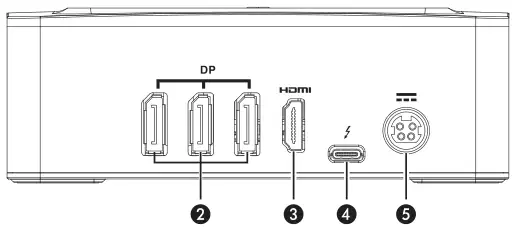
eGFX Breakaway Puck Description

Sonnet eGFX Breakaway Puck (RX 560) — eGFX Breakaway Puck Description diagram (page 3)
図 2 · eGFX Breakaway Puck Description
1. Power Indicator LED This indicator lights when the eGFX Breakaway Puck is connected to a power source, the included Thunderbolt cable plugged in securely between the device and your computer, and the computer powered on.
Sonnet eGFX Breakaway Puck (RX 560) — eGFX Breakaway Puck Description diagram (page 3)
図 3 · eGFX Breakaway Puck Description
2. DisplayPort 1.4 Ports
3. HDMI 2.0b Port
4. Thunderbolt 3 Port Connect the included Thunderbolt cable, or a comparable Thunderbolt 3 (40Gbps) cable, between this port and your computer’s Thunderbolt 3 port.
5. 20VDC Socket Connect the included DC power adapter between this socket and the included power cord.
Page 4 of the Sonnet eGFX Breakaway Puck (RX 560) user manual — eGFX Breakaway Puck Description
4ページ · クリックして拡大
4ページ

Mac Setup Overview To support an eGFX Breakaway Puck, your Mac must be running the required minimum (or later) version of macOS; Sonnet recommends using macOS Mojave (or later), as it offers more features and greater stability. The drivers that support the Puck are installed as part of macOS. As a result, the Puck is ready to use when connected to your computer.

1. If you are connecting displays to the Puck, do so now. Please note, macOS Mojave

10.14.2 or later is required for the Puck to accelerate graphics on the built-in display of an iMac

®, MacBook Air

®, or MacBook Pro

®.

Support Notes: If you’re using a 2016 or 2017 13-inch MacBook Pro, always connect the Puck to one of the left-hand Thunderbolt 3 ports for maximum data throughput.

For optimal performance, the Puck should be connected directly to your Mac and not daisy- chained through another Thunderbolt device.

2. Connect the included power cord between a wall outlet or power strip and the

power adapter, and then connect the power adapter cable to the Puck’s power socket. Note that the Puck’s power indicator will not light until the computer is turned on.

3. Connect the included Thunderbolt cable, or a comparable Thunderbolt 3 (40Gbps)

cable, between the Thunderbolt 3 port on the Puck and a Thunderbolt 3 port on your computer. Cables marked with the USB icon ( ) are NOT compatible.

4. If you haven’t already done so, turn on your computer. With the Puck connected

to your Mac, the eGPU icon

will appear in the menu bar, indicating the Puck is recognized and ready for use.

Page 5 of the Sonnet eGFX Breakaway Puck (RX 560) user manual — eGFX Breakaway Puck Description
5ページ · クリックして拡大
5ページ

Using the Puck Under macOS you can configure applications to use the Puck with one of the following methods:

Support Note: eGPU support in macOS High Sierra 10.13.4 and later is designed to accelerate Metal, OpenGL, and OpenCL applications that benefit from a powerful eGPU. Not all apps support eGPU acceleration; check with the application’s developer to learn more.

  • Use the Prefer External GPU Option Starting with macOS Mojave 10.14, you can turn on Prefer External GPU in specific applications’ Get Info panels in the Finder. This option enables the Puck to accelerate apps on your computer’s internal display (if equipped) or any display connected to the Mac. Note that you won’t see this option when the Puck isn’t connected or if the application self-manages its GPU selection. Some applications will ignore the Prefer External GPU checkbox and directly select which graphics processors are used.
  • Set a Puck-connected Display as the Primary Display If you have an external display connected to your Puck, you can choose it as the primary display for all apps. Since applications default to the GPU associated with the primary display, this option works with a variety of applications. If you disconnect the Puck, your Mac defaults back to the internal graphics processor that drives the built-in display. When the Puck is reconnected, the external display will automatically be set as the primary display.

Support Note: For more detailed information on eGPU use, visit support.apple.com and search “use an external graphics processor with your Mac”.

in the menu bar, and then select Disconnect.

  • macOS High Sierra 10.13.4 and later don’t support eGPUs in Windows using Boot Camp or when your Mac is in macOS Recovery or installing system updates.
  • If you have a Mac mini (2018) with FileVault turned on, make sure to connect your primary display directly to Mac mini during startup. After you log in and see the macOS Desktop, you can unplug the display from Mac mini and connect it to your eGPU.
  • eGFX Puck Radeon RX 560 provides charging power up to 60W to compatible computers, while the RX 570 model provides up to 45W.

Need More Information? Please visit www.sonnettech.com/support/kb/kb.php click on the Thunderbolt link, and then click on the eGFX Breakaway Puck link for important information, useful tips, and answers to frequently asked questions.

FCC Compliance eGFX Breakaway Puck complies with Part 15 of the FCC Rules. Operation is subject to the following two conditions: This device may not cause harmful interference, AND this device must accept any interference received, including interference that may cause undesired operation.

Page 6 of the Sonnet eGFX Breakaway Puck (RX 560) user manual — eGFX Breakaway Puck Description
6ページ · クリックして拡大
6ページ

Contacting Customer Service The Sonnet Web site located at www.sonnettech.com has the most current support information and technical updates. Before contacting Customer Service, please check our Web site for the latest updates and online support files, and check this Quick Start Guide for helpful information.

Email support requests generally receive the fastest responses, and are usually processed within a 24-hour period during normal business hours, excluding holidays. When you contact Customer Service, have the following information available so the customer service staff can better assist you:

  • Product name
  • Date and place of purchase
  • Computer model
  • OS version
  • A System Report (macOS) or a Microsoft System Information MSINFO32 (Windows) report (Windows), along with a description of the issue(s) you are encountering with your device

If further assistance is needed, please contact us at: USA Customers Please contact Sonnet Customer Service at: E-mail: support@sonnettech.com Tel: 1-949-472-2772 (Monday–Friday, 8 a.m.–4 p.m. Pacific Time)

For Customers Outside the USA For support on this product, contact your reseller or local distributor.

Visit Our Web Site For the most current product information and online support files, visit the Sonnet web site at www.sonnettech.com Remember to register your product online at https:// registration.sonnettech.com to be informed of future upgrades and product releases.

情報源

参考資料・リンク

この取扱説明書で参照されているリンク(メーカー、サポート、ダウンロード等)。

Sonnet eGFX Breakaway Puck (RX 560)について質問する

ユーザーまたはスタッフが通常1日以内に回答します。あなたの質問が次の人の助けにもなります。

Add your email to get notified when it’s answered — no spam, ever.

0 questions
Sonnet eGFX Breakaway Puck (RX 560)に関する質問はまだありません

最初の質問を投稿しましょう。他のユーザーや当チームが回答します。

原本

Sonnet eGFX Breakaway Puck (RX 560) 取扱説明書(PDF)

36 ページ·1.3 MB·グラフィックボード·PDF
上のページをクリックするとここに表示されます
ページ 1 / …
100%
ページを読み込み中…