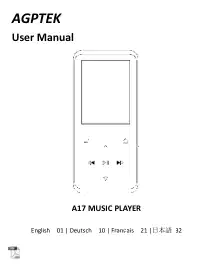

User Manual

English 01 | Deutsch 10 | Français 21 |日本語32


to enter. • Back. When on any interface, press
to browse item, press button
to go back; hold down to back to home menu directly. • Volume adjustment. On the non-list menu, press Vol+/Vol- to adjust volume.
Main Functions Home Menu The home menu is the starting point of each application. There are 8
/ · / · /

functions on the home menu: Music/FM Radio/Folder/Bluetooth/ Recorder/Video/E-book/Tools/Settings.
Find “Music” on home menu with button
to fast forward, and press it to skip to next track. Hold down the button
to fast rewind, and press it to play the previous track. Press button
to play/pause. Back to Home/Play Mode/Sound Settings/Add to Playlist/Remove
from Playlist/ Delete/Bookmarks. While it’s on music playing interface, tap button
to access to the submenu. 1. Back to Home. Choose to go to home menu. 2. Play Mode. A. Play music from. Choose to play from All Songs/This Artist/Album/Genre. B. Repeat. Choose repeat mode: Repeat Off, Repeat 1, Repeat All. C. Shuffle. Choose to turn on/off shuffle mode. D. Repeat Settings. a. Repeat Mode. ╶ Enter. Press the button
to enter. ╶ Set. Press button
to confirm the starting time A when A is flashing. Then press button
to set the ending time B when B is flashing. The
Music

passage from time A to B will be repeated automatically. The icon for A-B indication will appear on the screen. Press button
again to back to normal playback. b. Replay Times. Set the replay times from 1 to 10. c. Replay Interval. Set the replay gap from 1 to 10 (seconds). 3. Sound Settings. Choose to set Equalizer, Variable Speed Playback and Volume Limit. 4. Add to Playlist/Remove from Playlist. Choose to add to or remove from the 3 existing playlist. 5. Delete. Choose to delete the song that is playing now. 6. Bookmarks. Choose to add bookmark for the song that is playing now, or go to/delete the bookmark you added.
Find “FM Radio” on Home menu with the button
to switch among preset stations, press the button
to find tune stations. Press button
to access to its submenu which includes: 1. Start FM Recording. Press button
and select “Yes” to save the recording file. 2. Radio Background. Choose to turn on/off radio background. 3. Save/Clear station/Auto tune. 4. Tuner Region. Choose from Common/European/Japan Band as needed. 5. FM Recordings. Folder
FM Radio · / · to pause/continue, press

Find “Folder” on Home menu with the button
to access to its function. All of the files in the player will be listed. If the Micro SD card is inserted, you can choose to go to Local folder or Card folder.
Find “Bluetooth” on Home menu with the button
to access to its function. A related list will show, including Bluetooth On/Off, Search Devices, Device List. Select the device you want to connect/disconnect, and then press
to connect/disconnect. After successfully connected, this player is ready to play music or FM radio via Bluetooth headphones, Bluetooth speaker, etc. Note: 1. When listen to radio by Bluetooth, wired headphones are needed as radio antenna. 2. Recorder,Variable Speed Playback, Video, Pictures, Pedometer functions are not available when Bluetooth is opened.
Find “Recorder” on home menu with button
to access to its function. A related list will show: • Start Voice Recording. Press button
to start voice recording, press again to pause. Press the button
and choose “Yes” to save the recording file. • Recordings Library. Find the saved recordings in Recorder>Recordings Library. You will need to choose from local folder or card folder if the memory card is inserted. While it’s on recording playing interface, press button
and choose “Delete” to delete. • Storage. Choose to store your recordings in internal or external memory. Confirm your selection with button
Bluetooth · Recorder

to access to its function. You will need to choose from local folder or card folder if the memory card is inserted. • Press button
to go to previous/next video or hold to fast backward/forward. • When it’s on video playing interface, press button
to watch videos, press the button
to access to its submenu, including: Brightness, Repeat, Delete Video, Update Playlist. Set according to your preference. Tools
Find “Tools” on Home menu with the button
to access to its function. A related list will show: • Photos. Press
to go to previous/next picture. When it’s on picture viewing interface, press button
to view pictures, press the
to access to its submenu, including: Brightness, Backlight Timer, Slideshow Settings, Delete Photos, Update Playlist. Set according to your preference. • Calendar. Press the button
to switch among year|month|day, press the button
to choose specific year|month|day. • Stopwatch Press
again to start the timer, then press it again to stop or press
to enter. Press
to start a new one. The maximum Stopwatch list is 4. • Clock. Press button
to resume. Press
to enter, a related list will show: Alarm On/off, Alarm Time, Alarm Cycle (Once/Daily/Work day), Alarm Music, Alarm Volume. Set according to your preference. • Pedometer. Find "Pedometer" on Tools with the button
to access to its function, a related list will show: 1. Start. Press
to exit the current interface. Then choose Save and press
to start counting your daily steps. Press
to stop or save counting steps. Find the saved step record in History.
/ · / · /

to confirm. 3. History. All your saved step record will be listed here, and you can save up to 7 records. If the history record is full, it will automatically cover the previous one. 4. Clear history. You can choose to clear the history record you want or clear all the history record. E-book
While it’s on text playing interface, press button
to turn the pages. Press the button
to play automatically, press again to stop. Press
to adjust the brightness of the display. Submenu. While it ’s on text playing interface, press button
to enter its submenu and set your preference, including Autoplay Settings (2s-30s), Set Font Size, E-book background, Delete E-book, Select Bookmark, Delete Bookmark, Add Bookmark, Select Page, Local Folder and Card Folder (Only available when TF card inserted).
Find “Settings” on Home menu with the button
to switch among hour | minute; Press button

Help and Troubleshooting How to reset the language? There are two ways to reset the language as shown below. 1. Find
(Settings) in the home menu and confirm it by pressing button
to confirm. Scroll down and select the language you want to set. 2. Find
. Select the first (upper) option and press button
(Settings) in the home menu, enter and scroll down to the last menu. Press button
to enter and choose the first (upper) option which means "Yes" with button
to confirm and restore to factory settings. And then the player will power on automatically and then you can choose language again. Can’t turn on the player; the screen of player goes
blank/black; the player is crashed or has a firmware bug. 1. Power off the player and try again. 2. Update the firmware. Please contact our customer service or check our website at https://www.agptek.com/blog to download the firmware. Can’t download files from computer. 1. Please confirm whether it’s connected properly; 2. Please check whether the storage space of the internal memory is full; 3. Please check whether the USB cable is damaged. Can’t recognize the player when connected to the
computer via USB cable. 1. Reconnect it. 2. Restart the computer and reconnect it. 3. Connect your player to another USB port. 4. Charge the player for about 10 minutes first.

ユーザーまたはスタッフが通常1日以内に回答します。あなたの質問が次の人の助けにもなります。
最初の質問を投稿しましょう。他のユーザーや当チームが回答します。