



Europe, Middle East ENGLISH FRANÇAIS DEUTSCH NEDERLANDS ITALIANO ESPAÑOL PORTUGUÊS РУССКИЙ ČESTINA TÜRKÇE POLSKI SVENSKA SUOMI SLOVENCINA MAGYAR NYELV עברית اﻟﻌﺮﺑﻴﺔ
Latin America/ América Latina ENGLISH ESPAÑOL PORTUGUÊS
Asia Pacific 日本語 简体中文 繁體中文 한국어 ENGLISH


1/14

2/14

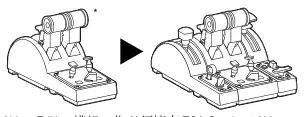
CONNECTING THE TCA QUADRANT ADD-ON AIRBUS EDITION MODULES TO THE TCA QUADRANT AIRBUS EDITION* *Sold separately
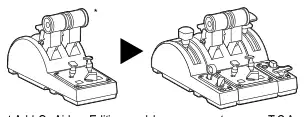
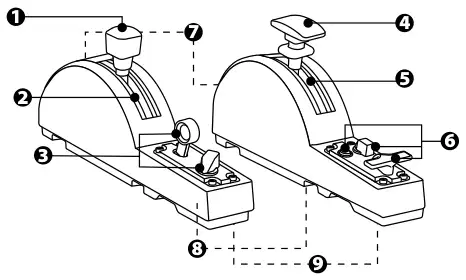
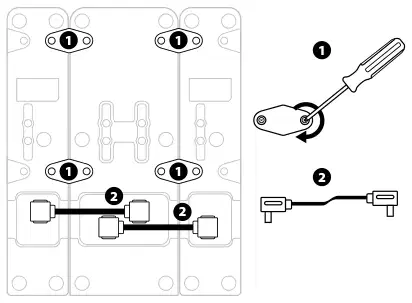
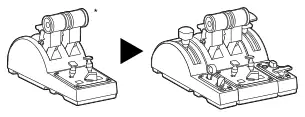
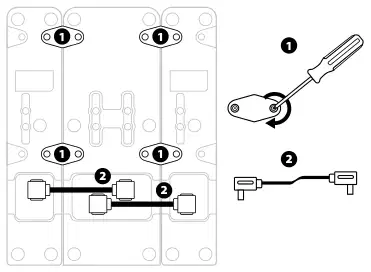
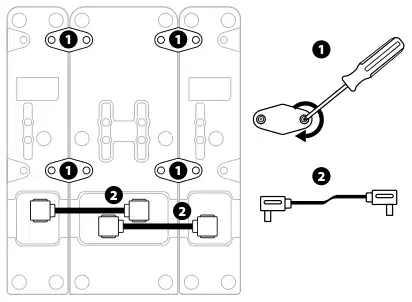
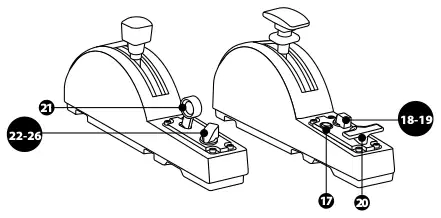
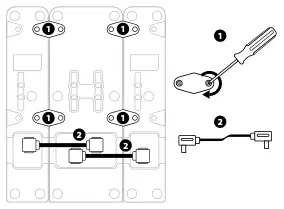
In order to use the TCA Quadrant Add-On Airbus Edition modules, you must own a TCA Quadrant Airbus Edition (sold separately). The TCA Quadrant Add-On Airbus Edition modules are an extension of the TCA Quadrant Airbus Edition throttle quadrant, and only work when connected to both sides of the TCA Quadrant Airbus Edition. This modularity adds new axes and action buttons, and lets you extend the kinematics (takeoff, in-flight and landing) of the TCA Quadrant Airbus Edition. 1. Turn all of the devices upside down and, using a screwdriver with the corresponding head shape (not included), screw on the four attachment pieces included with the TCA Quadrant Airbus Edition and the TCA Quadrant Add-On Airbus Edition modules, to attach everything together. 2. Connect the speed brake module to the left of the TCA Quadrant Airbus Edition and the flaps module to the right, using the SATA cables included with the TCA Quadrant Add-On Airbus Edition.
3/14

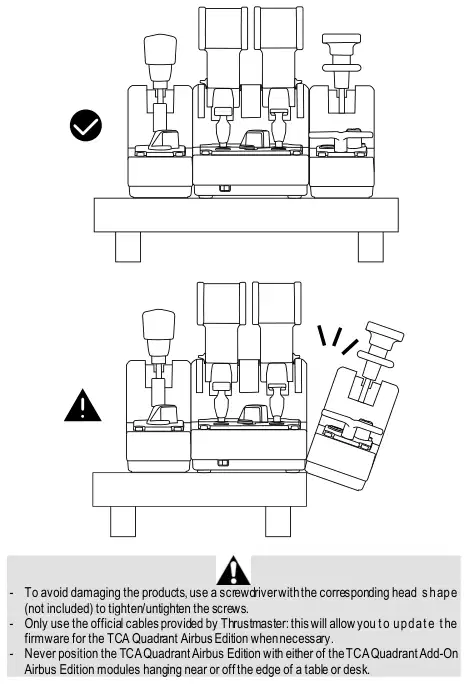
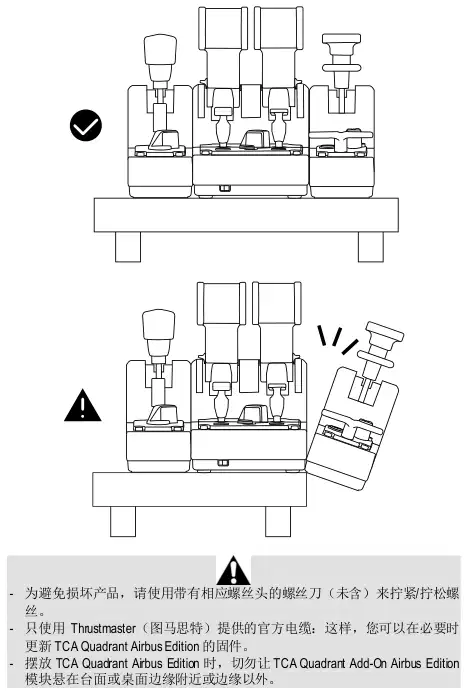
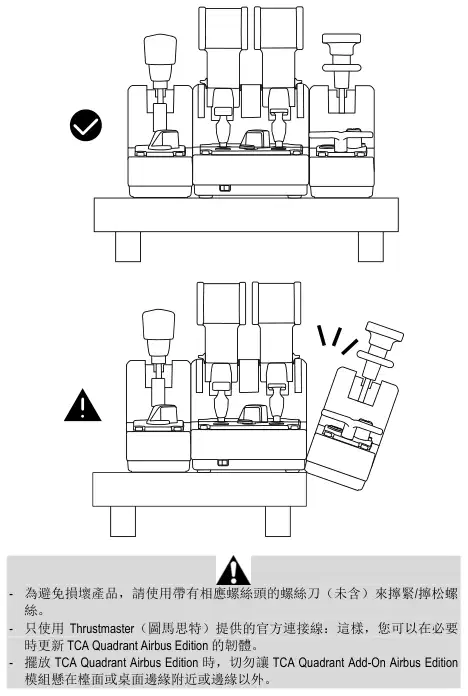
- To avoid damaging the products, use a screwdriver with the corresponding head shape
(not included) to tighten/untighten the screws. - Only use the official cables provided by Thrustmaster: this will allow you to update the
firmware for the TCA Quadrant Airbus Edition when necessary. - Never position the TCA Quadrant Airbus Edition with either of the TCA Quadrant Add-On
Airbus Edition modules hanging near or off the edge of a table or desk.
4/14

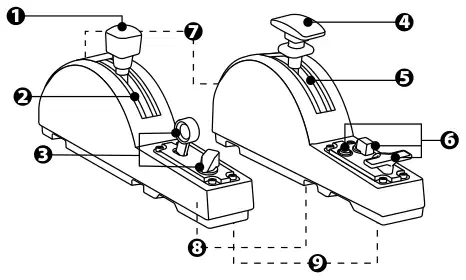
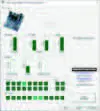
INSTALLATION ON PC 1. Please visit https://support.thrustmaster.com. Click Joysticks / TCA Quadrant Airbus Edition (or TCA Quadrant Add-On Airbus Edition), and select Drivers. Download and install the PC driver and its customized interface for the Windows Control Panel. 2. Once the PC driver has been installed, connect the USB connector for the TCA Quadrant Airbus Edition to one of the USB ports on your PC. 3. To access the Control Panel, click Start / Apps / Thrustmaster / Control Panel (in Windows® 10 / 8.1 / 8). The Game Controllers dialog box appears. The accessory is listed onscreen with the name TCA Q-Eng 1&2 (or TCA Q-Eng 3&4, depending on the position of the selector switch for the engines [5] on the TCA Quadrant Airbus Edition), along with OK status. 4. In the Game Controllers dialog box, click Properties to test and view all features, including those related to the TCA Quadrant Add-On Airbus Edition modules.
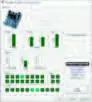
Enable virtual buttons: This feature lets you enable or disable the virtual buttons available on the axes for the throttle quadrant, and the speed brake module. Click Apply once you have selected the mode you want to use.
You are now ready to play!
- In order to use the TCA Quadrant Add-On Airbus Edition modules, you must own a TCA
Quadrant Airbus Edition (sold separately). - Visit https://support.thrustmaster.com to download the package containing the drivers
allowing you to update the product’s firmware, providing you with more detailed control of the product’s features.
5/14

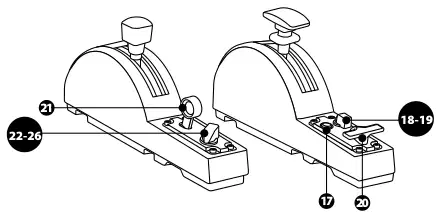
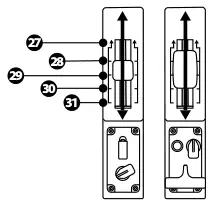
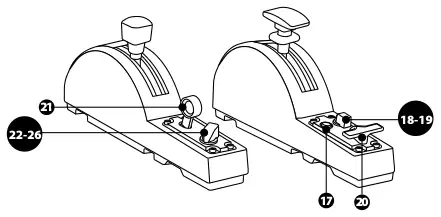
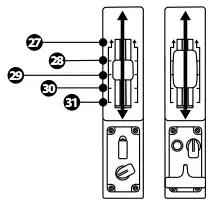
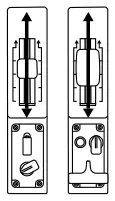
MAPPING OF THE TCA QUADRANT ADD-ON AIRBUS EDITION MODULES’ 15 BUTTONS AND 2 AXES
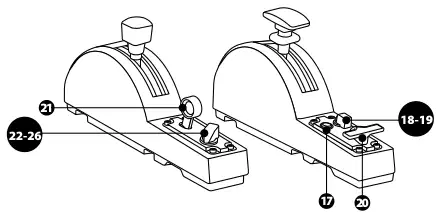
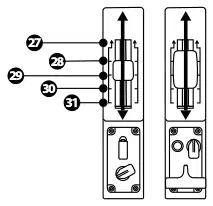
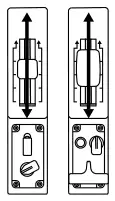
0 up ZR 65536 down
0 up Z 65536 down
6/14

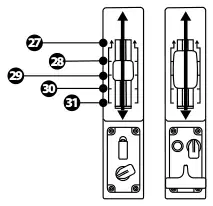
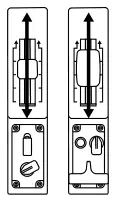
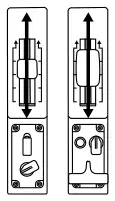
MAKING CHANGES TO THE AXES ON THE TCA QUADRANT ADD-ON AIRBUS EDITION MODULES The TCA Quadrant Add-On Airbus Edition modules feature mechanical selectors allowing you to disable the detents/notches on each axis. Doing so allows you to have smooth axes, while maintaining virtual buttons 27 through 31 on the speed brake module. This option lets you change the piloting sensations according to the type of aircraft being used in your simulation (commercial aircraft or civil aircraft). 1. Turn the TCA Quadrant Add-On Airbus Edition modules upside down, and unscrew the two screws for each of the selectors using a screwdriver with the corresponding head shape (not included). 2. Switch the position of the selectors, using the indicators as a guide: this will let you choose either a smooth axis, or an axis with detents/notches, for each axis on the TCA Quadrant Add-On Airbus Edition modules.
7/14

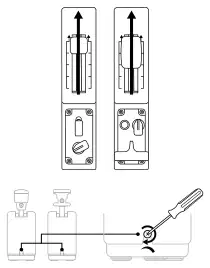
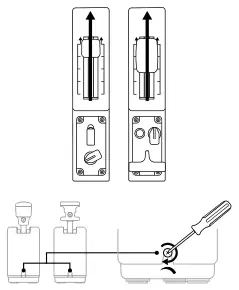
ADJUSTING THE FRICTION IMPORTANT NOTES: - The friction on the TCA Quadrant Add-On Airbus Edition modules is set to 50% by
default. - In order to allow for precise adjustment according to your preferences, you can use a
screwdriver with the corresponding head shape (not included) — or the crossbar included with the TCA Quadrant Airbus Edition — to turn the friction adjustment screws. 1. Push both TCA Quadrant Add-On Airbus Edition module levers forward to their maximum values, and then access the friction adjustment screw at the back of each module. 2. To increase the friction, turn the friction adjustment screw clockwise.
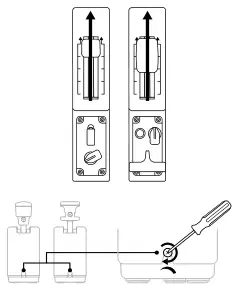
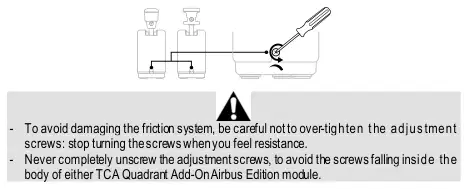
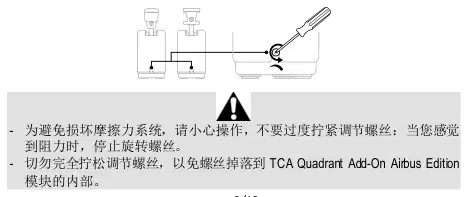
- To avoid damaging the friction system, be careful not to over-tighten the adjustment
screws: stop turning the screws when you feel resistance. - Never completely unscrew the adjustment screws, to avoid the screws falling inside the
body of either TCA Quadrant Add-On Airbus Edition module.
8/14

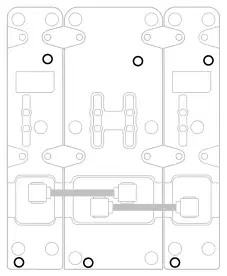
ATTACHING THE TCA QUADRANT AIRBUS EDITION* AND THE TCA QUADRANT ADD-ON AIRBUS EDITION MODULES TO THE TM FLYING CLAMP*, A COCKPIT* OR OTHER STATIONARY SURFACE *Sold separately You can use the 6 perforations located on the underside of the TCA Quadrant Airbus Edition, when connected to the TCA Quadrant Add-On Airbus Edition modules, to attach all of the devices to a stationary surface, using M6 screws (not included).
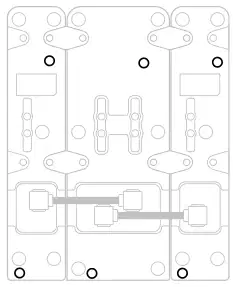
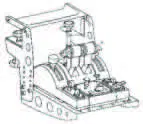
Attachment diagram for the TM Flying Clamp* (*sold separately):
9/14

T.A.R.G.E.T ADVANCED PROGRAMMING SOFTWARE (Thrustmaster Advanced pRogramming Graphical EdiTor) Please visit https://support.thrustmaster.com. Click Joysticks / TCA Quadrant Airbus Edition (or TCA Quadrant Add-On Airbus Edition), then select Software. Download and install the T.A.R.G.E.T advanced programming software. Main features of T.A.R.G.E.T: - Different possible configurations for the axes. - Different possible programming levels: Basic, Advanced and Script. - Use of the Drag and Drop principle. - Ability to combine the TCA Quadrant Airbus Edition throttle quadrant with various
Thrustmaster joysticks (HOTAS Cougar, HOTAS Warthog, T.16000M, MFD Cougar Pack, all of which are also compatible with T.A.R.G.E.T), allowing them to be recognized as a single USB device. - Access to advanced profiles created by the Thrustmaster community.

10/14

Visit https://support.thrustmaster.com to download the package containing the drivers allowing you to update the product’s firmware, providing you with more detailed control of the product’s features. • My TCA Quadrant Add-On Airbus Edition modules aren’t working properly, or seem to be improperly calibrated, when connected to the TCA Quadrant Airbus Edition. - Visit https://support.thrustmaster.com to check whether a more recent firmware
version is available: if so, follow the instructions to download and install it. - Power off your PC, and disconnect the USB connector for the TCA Quadrant Airbus
Edition throttle quadrant. Make sure that both SATA cables are properly connected to the devices. - Power off your PC, and disconnect the USB connector for the TCA Quadrant Airbus
Edition throttle quadrant. Then reconnect the USB connector, power on your PC again, and restart your game. - When connecting the USB connector for the TCA Quadrant Airbus Edition throttle
quadrant, always leave the rudder axis centered if you are using the TFRP rudder system (sold separately): never put your feet on the TFRP rudder system’s pedals when doing so. • I can’t configure my TCA Quadrant Add-On Airbus Edition modules with my TCA Quadrant Airbus Edition throttle quadrant. - In your game’s Options / Controller / Gamepad or Joystick menu, select the
appropriate configuration or completely reconfigure the controller’s options. - Visit https://support.thrustmaster.com to check whether a more recent firmware
version is available: if so, follow the instructions to download and install it. - For more information, please refer to your game’s user manual or online help. - You can also use the T.A.R.G.E.T (Thrustmaster Advanced pRogramming Graphical
EdiTor) advanced programming software. • My TCA Quadrant Add-On Airbus Edition modules are too sensitive, or not sensitive enough. - The axes for the TCA Quadrant Add-On Airbus Edition modules automatically
calibrate themselves after a few movements, and after having reached the physical stops for the axes. - In your game’s Options / Controller / Gamepad or Joystick menu, adjust the sensitivity
and dead zones for your controller (if these options are available). - You can also use the T.A.R.G.E.T (Thrustmaster Advanced pRogramming Graphical
EdiTor) advanced programming software.
These devices are intended for use with respect to gaming entertainment purposes only. It is strictly forbidden to use these devices for professional training activities.
11/14

CONSUMER WARRANTY INFORMATION Worldwide, Guillemot Corporation S.A., whose registered office is located at Place du Granier, B.P. 97143, 35571 Chantepie, France (hereinafter “Guillemot”) warrants to the consumer that this Thrustmaster product shall be free from defects in materials and workmanship, for a warranty period which corresponds to the time limit to bring an action for conformity with respect to this product. In the countries of the European Union, this corresponds to a period of two (2) years from delivery of the Thrustmaster product. In other countries, the warranty period corresponds to the time limit to bring an action for conformity with respect to the Thrustmaster product according to applicable laws of the country in which the consumer was domiciled on the date of purchase of the Thrustmaster product (if no such action exists in the corresponding country, then the warranty period shall be one (1) year from the original date of purchase of the Thrustmaster product). Notwithstanding the above, rechargeable batteries are covered by a warranty period of six (6) months from the date of original purchase. Should the product appear to be defective during the warranty period, immediately contact Technical Support, who will indicate the procedure to folow. If the defect is confirmed, the product must be returned to its place of purchase (or any other location indicated by Technical Support). Within the context of this warranty, the consumer’s defective product shall, at Technical Support’s option, be either replaced or returned to working order. If, during the warranty period, the Thrustmaster product is subject to such reconditioning, any period of at least seven (7) days during which the product is out of use shall be added to the remaining warranty period (this period runs from the date of the consumer’s request for intervention or from the date on which the product in question is made available for reconditioning, if the date on which the product is made available for reconditioning is subsequent to the date of the request for intervention). If permitted under applicable law, the full liability of Guillemot and its subsidiaries (including for consequential damages) is limited to the return to working order or the replacement of the Thrustmaster product. If permitted under applicable law, Guillemot disclaims all warranties of merchantability or fitness for a particular purpose. This warranty shall not apply: (1) if the product has been modified, opened, altered, or has suffered damage as a result of inappropriate or abusive use, negligence, an accident, normal wear, or any other cause unrelated to a material or manufacturing defect (including, but not limited to, combining the Thrustmaster product with any unsuitable element, including in particular power supplies, rechargeable batteries, chargers, or any other elements not supplied by Guillemot for this product); (2) if the product has been used for any use other than home use, including for professional or commercial purposes (game rooms, training, competitions, for example); (3) in the event of failure to comply with the instructions provided by Technical Support; (4) to software, said software being subject to a specific warranty; (5) to consumables (elements to be replaced over the product’s lifespan: disposable batteries, audio headset or headphone ear pads, for example); (6) to accessories (cables, cases, pouches, bags, wrist-straps, for example); (7) if the product was sold at public auction. This warranty is nontransferable. The consumer’s legal rights with respect to laws applicable to the sale of consumer goods in his or her country are not affected by this warranty.
12/14

Additional warranty provisions During the warranty period, Guillemot shall not provide, in principle, any spare parts, as Technical Support is the only party authorized to open and/or recondition any Thrustmaster product (with the exception of any reconditioning procedures which Technical Support may request that the consumer carry out, by way of written instructions – for example, due to the simplicity and the lack of confidentiality of the reconditioning process – and by providing the consumer with the required spare part(s), where applicable). Given its innovation cycles and in order to protect its know-how and trade secrets, Guillemot shall not provide, in principle, any reconditioning notification or spare parts for any Thrustmaster product whose warranty period has expired. In the United States of America and in Canada, this warranty is limited to the product’s internal mechanism and external housing. In no event shall Guillemot or its affiliates be held liable to any third party for any consequential or incidental damages resulting from the breach of any express or implied warranties. Some States/Provinces do not allow limitation on how long an implied warranty lasts or exclusion or limitation of liability for consequential or incidental damages, so the above limitations or exclusions may not apply to you. This warranty gives you specific legal rights, and you may also have other rights which vary from State to State or Province to Province. Liability If permitted under applicable law, Guillemot Corporation S.A. (hereinafter “Guillemot”) and its subsidiaries disclaim all liability for any damages caused by one or more of the following: (1) the product has been modified, opened or altered; (2) failure to comply with assembly instructions; (3) inappropriate or abusive use, negligence, an accident (an impact, for example); (4) normal wear; (5) the use of the product for any use other than home use, including for professional or commercial purposes (game rooms, training, competitions, for example). If permitted under applicable law, Guillemot and its subsidiaries disclaim all liability for any damages unrelated to a material or manufacturing defect with respect to the product (including, but not limited to, any damages caused directly or indirectly by any software, or by combining the Thrustmaster product with any unsuitable element, including in particular power supplies, rechargeable batteries, chargers, or any other elements not supplied by Guillemot for this product).


13/14

DECLARATION OF CONFORMITY CANADIAN COMPLIANCE NOTICE: this Class B digital apparatus meets all requirements of the Canadian Interference-Causing Equipment Regulations. USA COMPLIANCE NOTICE: this equipment has been tested and found to comply with the limits for a Class B digital device, pursuant to Part 15 of the FCC rules. Operation is subject to the following two conditions: (1) This device may not cause harmful interference, and (2) This device must accept any interference received, including interference that may cause undesired operation. These limits are designed to provide reasonable protection against harmful interference in a residential installation. This equipment generates, uses and can radiate radio frequency energy and, if not installed and used in accordance with the instructions, may cause harmful interference to radio communications. However, there is no guarantee that interference will not occur in a particular installation. If this equipment does cause harmful interference to radio or television reception, which can be determined by turning the equipment on and off, the user is encouraged to try to correct the interference by one or more of the following measures: - Reorient or relocate the receiving antenna. - Increase the separation between the equipment and receiver. - Connect the equipment into an outlet on a circuit different from that to which the receiver is connected. - Consult the dealer or an experienced radio/TV technician for help. COPYRIGHT © 2020 Guillemot Corporation S.A. All rights reserved. Thrustmaster® is a registered trademark of Guillemot Corporation S.A. Windows® is a registered trademark of Microsoft Corporation in the United States and/or other countries. AIRBUS, its logo and product and service marks are registered trademarks of Airbus. All rights reserved. © Airbus 2020. All rights reserved. Officially licensed by Airbus. All other trademarks and brand names are hereby acknowledged and are property of their respective owners. Illustrations not binding. Contents, designs and specifications are subject to change without notice and may vary from one country to another. Made in China. ENVIRONMENTAL PROTECTION RECOMMENDATION
In the European Union: At the end of its working life, this product should not be disposed of with standard household waste, but rather dropped off at a collection point for the disposal of Waste Electrical and Electronic Equipment (WEEE) for recycling. This is confirmed by the symbol found on the product, user manual or packaging. Depending on their characteristics, the materials may be recycled. Through recycling and other forms of processing Waste Electrical and Electronic Equipment, you can make a significant contribution towards helping to protect the environment. Please contact your local authorities for information on the collection point nearest you. For all other countries: Please adhere to local recycling laws for electrical and electronic equipment. Retain this information. Colors and decorations may vary. Plastic fasteners and adhesives should be removed from the product before it is used. www.thrustmaster.com *Applicable to EU and Turkey only
* · 14/14


1/14

将 TCA QUADRANT ADD-ON AIRBUS EDITION 模块连接到 TCA QUADRANT AIRBUS EDITION* * 另售
要使用 TCA Quadrant Add-On Airbus Edition 模块,您必须拥有 TCA Quadrant Airbus
Edition(另售)。TCA Quadrant Add-On Airbus Edition 模块是 TCA Quadrant Airbus
Edition 节流阀弧座的扩展模块,仅当连接到 TCA Quadrant Airbus Edition 的两端
这种模块化设计增加了新的轴和操作按钮,让您能够拓展 TCA Quadrant Airbus
Edition 的运动特性(起飞、空中飞行和着陆)。
Airbus Edition 和 TCA Quadrant Add-On Airbus Edition 模块随附的四个连接件,将
到 TCA Quadrant Airbus Edition 的左侧,将襟翼模块连接到右侧。
3/12

更新 TCA Quadrant Airbus Edition 的固件。 - 摆放 TCA Quadrant Airbus Edition 时,切勿让 TCA Quadrant Add-On Airbus Edition
4/12

Airbus Edition(或 TCA Quadrant Add-On Airbus Edition),然后选择 Drivers
(驱动程序)。下载并安装 PC 驱动程序及其基于 Windows 控制面板的自定
此时将显示游戏控制器对话框。
屏幕上将以 TCA Q-Eng 1&2 的名称(或者 TCA Q-Eng 3&4,取决于 TCA Quadrant
Airbus Edition 上引擎 [5] 的选择器开关所处的位置)列出该附件并且状态显示
Quadrant Add-On Airbus Edition 模块相关的功能。
Enable virtual buttons (启用虚拟按钮):此功能允许您为节流阀弧座和减速板模
块启用或禁用各个轴上的虚拟按钮。在选择您要使用的模式之后,单击 Apply
现 在即可 开 始玩游 戏 了!
- 要使用 TCA Quadrant Add-On Airbus Edition 模块,您必须拥有 TCA Quadrant
Airbus Edition(另售)。 - 访问 http://support.thrustmaster.cn 以下载驱动程序软件包,该软件包可让您
5/12

轴 的映射
0 up ZR 65536 down
0 up Z 65536 down
6/12

功能
TCA Quadrant Add-On Airbus Edition 模块配备机械选择器,让您能够禁用每个轴
上的止动器/凹槽。这样,您可在保留减速板模块上的虚拟按钮 27 到 31 的同
通过此选项,您可以根据飞行模拟中所使用的飞机类型(商用飞机或民航飞
(未含)拧松每个选择器上的两个螺丝。
Edition 模块的每个轴配置为平滑轴或者带有止动器/凹槽的轴。
7/12

- TCA Quadrant Add-On Airbus Edition 模块上的摩擦力默认设置为 50%。
或 TCA Quadrant Airbus Edition 随附的十字杆旋转摩擦力调节螺丝。
后接触每个模块背部的摩擦力调节螺丝。
8/12

ADD-ON AIRBUS EDITION 模 块 固定到 TM FLYING CLAMP* 、
驾驶 座 * 或其他固定表面上。
在连接 TCA Quadrant Add-On Airbus Edition 模块时,您可以使用 M6 螺丝(未含)
通过 TCA Quadrant Airbus Edition 底部的 6 个穿孔将所有设备固定到固定表面上。
TM Flying Clamp*(另售)的固定示意图:
9/12

请访问 http://support.thrustmaster.cn。单击 Joysticks(摇杆)/ TCA Quadrant
Airbus Edition(或 TCA Quadrant Add-On Airbus Edition),然后选择 Software
(软件)。下载并安装 T.A.R.G.E.T 高级编程软件。
- 支持不同级别的编程设置:Basic、Advanced 与 Script。
- 可让 TCA Quadrant Airbus Edition 节流阀弧座与各种 Thrustmaster(图马思特)
摇杆(HOTAS Cougar、HOTAS Warthog、T.16000M 和 MFD Cougar Pack,这些
设备也兼容 T.A.R.G.E.T)结合在一起,从而被识别为单个 USB 设备。
- 可访问由 Thrustmaster(图马思特)社区创建的高级配置文件。
10/12


將 TCA QUADRANT ADD-ON AIRBUS EDITION 模組連接到 TCA QUADRANT AIRBUS EDITION* * 另售
要使用 TCA Quadrant Add-On Airbus Edition 模組,您必須擁有 TCA Quadrant Airbus Edition(另售)。TCA Quadrant Add-On Airbus Edition 模組是 TCA Quadrant Airbus Edition 節流閥弧座的擴展模組,僅當連接到 TCA Quadrant Airbus Edition 的兩端 時才能工作。
這種模組化設計增加了新的軸和操作按鈕,讓您能夠拓展 TCA Quadrant Airbus
Edition 的運動特性(起飛、空中飛行和著陸)。 1. 翻轉所有裝置,使用帶有相應螺絲頭的螺絲刀(未含),擰上 TCA Quadrant Airbus Edition 和 TCA Quadrant Add-On Airbus Edition 模組隨附的四個連接件,將 各個裝置連接到一起。 2. 使用 TCA Quadrant Add-On Airbus Edition 隨附的 SATA 連接線將減速板模組連 接到 TCA Quadrant Airbus Edition 的左側,將襟翼模組連接到右側。
3/12

時更新 TCA Quadrant Airbus Edition 的韌體。 - 擺放 TCA Quadrant Airbus Edition 時,切勿讓 TCA Quadrant Add-On Airbus Edition
4/12

安裝到 PC 上 1. 請瀏覽 https://support.thrustmaster.com。按一下 Joysticks(搖桿)/ TCA Quadrant Airbus Edition(或 TCA Quadrant Add-On Airbus Edition),然後選取 Drivers(驅動程式)。下載並安裝 PC 驅動程式及其基於 Windows 控制台的 自訂介面。 2. 安裝 PC 驅動程式之後,將 TCA Quadrant Airbus Edition 的 USB 接頭連接到 PC 上的某個 USB 埠上。 3. 要存取控制台,請按一下開始 / 應用 / Thrustmaster / 控制台(在 Windows® 10 / 8.1 / 8 中)。 此時將顯示遊戲控制器對話方塊。 螢幕上將以 TCA Q-Eng 1&2 的名稱(或者 TCA Q-Eng 3&4,取決於 TCA Quadrant Airbus Edition 上引擎 [5] 的選取器開關所處的位置)列出該附件並且狀態顯示 為 OK(正常)。
TCA Quadrant Add-On Airbus Edition 模組相關的功能。

Enable virtual buttons (啟用虛擬按鈕):此功能允許您為節流閥弧座和減速板模
Apply (應用)。
- 要使用 TCA Quadrant Add-On Airbus Edition 模組,您必須擁有 TCA Quadrant
Airbus Edition(另售)。 - 瀏覽 https://support.thrustmaster.com 以下載驅動程式套裝軟體,該套裝軟體
5/12

0 向上 Z 65536 向下
6/12

TCA Quadrant Add-On Airbus Edition 模組配備機械選取器,讓您能夠停用每個軸
上的止動器/凹槽。這樣,您可在保留減速板模組上的虛擬按鈕 27 到 31 的同 時,擁有平滑軸。 透過此選項,您可以根據飛行模擬中所使用的飛機類型(商用飛機或民航飛 機)改變飛行操控感。 1. 翻轉 TCA Quadrant Add-On Airbus Edition 模組,使用帶有相應螺絲頭的螺絲刀 (未含)擰松每個選取器上的兩個螺絲。 2. 按圖示切換選取器的擋位:這樣,您可以選取將 TCA Quadrant Add-On Airbus Edition 模組的每個軸配置為平滑軸或者帶有止動器/凹槽的軸。
7/12

調節摩擦力 重要事項: - TCA Quadrant Add-On Airbus Edition 模組上的摩擦力默認設定為 50%。 - 要根據您的偏好精確調節摩擦力,可使用帶有相應螺絲頭的螺絲刀 (未含)或 TCA Quadrant Airbus Edition 隨附的十字桿旋轉摩擦力調節螺絲。
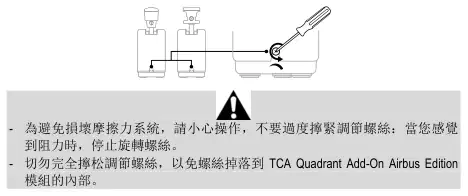
8/12

將 TCA QUADRANT AIRBUS EDITION* 和 TCA QUADRANT ADD-ON AIRBUS EDITION 模組固定到 TM FLYING CLAMP*、 駕駛座* 或其他固定表面上。
* 另售 在連接 TCA Quadrant Add-On Airbus Edition 模組時,您可以使用 M6 螺絲(未含) 透過 TCA Quadrant Airbus Edition 底部的 6 個穿孔將所有裝置固定到固定表面上。
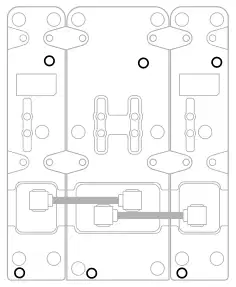
TM Flying Clamp*(另售)的固定示意圖:


9/12

T.A.R.G.E.T 進階程式設計軟體 (Thrustmaster Advanced pRogramming Graphical EdiTor) 請瀏覽 https://support.thrustmaster.com。按一下 Joysticks(搖桿)/ TCA Quadrant Airbus Edition(或 TCA Quadrant Add-On Airbus Edition),然後選取 Software(軟體)。下載並安裝 T.A.R.G.E.T 進階程式設計軟體。
- 支援不同的軸配置。 - 支援不同等級的編程設定:Basic、Advanced 與 Script。 - 採用「拖放」原則。 - 可讓 TCA Quadrant Airbus Edition 節流閥弧座與各種 Thrustmaster(圖馬思特)
搖桿(HOTAS Cougar、HOTAS Warthog、T.16000M 和 MFD Cougar Pack,這些 裝置也相容於 T.A.R.G.E.T)結合在一起,從而被識別為單個 USB 裝置。 - 可存取由 Thrustmaster(圖馬思特)社群建立的進階設定檔。

10/12

-瀏覽 https://support.thrustmaster.com 以下載驅動程式套裝軟體,該套裝 軟體可讓您更新產品的韌體,讓您能夠更精細地控制產品的各項功能。 • 我的 TCA Quadrant Add-On Airbus Edition 模組在連接到 TCA Quadrant Airbus Edition 時運作不正常,或者似乎校準不當。
- 請瀏覽 https://support.thrustmaster.com 以檢查是否有更新版本的韌體可用:
- 關閉 PC 並完全斷開 TCA Quadrant Airbus Edition 節流閥弧座的 USB 接頭。
確保兩根 SATA 連接線均正確連接到裝置。 - 關閉 PC 並完全斷開 TCA Quadrant Airbus Edition 節流閥弧座的 USB 接頭。
- 如果您使用的是 TFRP 方向舵系統(另售),則在連接 TCA Quadrant
Airbus Edition 節流閥弧座的 USB 接頭時,應使方向舵軸始終居中:在執
- 請瀏覽 https://support.thrustmaster.com 以檢查是否有更新版本的韌體可用:
- 有關詳細資訊,請參 閱 遊戲的使用者手冊或線上 說 明。
- 您也可以使用 T.A.R.G.E.T (Thrustmaster Advanced pRogramming Graphical
- TCA Quadrant Add-On Airbus Edition 模組的各個軸在運動幾次之後以及在達
敏度和盲區(如果這些選項可用)。 - 您也可以使用 T.A.R.G.E.T (Thrustmaster Advanced pRogramming Graphical
EdiTor) 進階程式設計軟體。 · EdiTor) 進階程式設計軟體。 · 11/12

© 2020 Guillemot Corporation S.A. 保留所有權利。圖馬思特® 為 Guillemot Corporation
S.A 的註冊商標。 AIRBUS 及其徽標和產品及服務標章是 Airbus 的註冊商標。保留所有權利。 © Airbus 2020.保留所有權利。獲得 Airbus 官方授權。
計和規格如有變更,恕不另行通知,並可能會視乎國家而不同。中國製造。
12/12


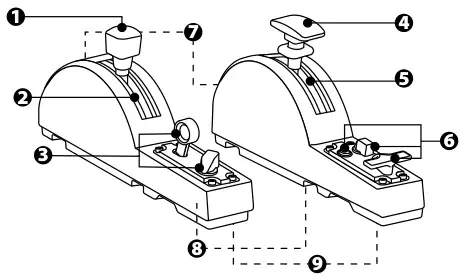
기술적 특징
1/12

6. 4 동작 버튼
브레이크 ) 축
7. 각 모듈에 있는 마찰 조절 나사
2. 축에 있는 4 개의 디텐트 +
8. 각 축의 디텐트를
5 개의 가상 버튼
활성화 / 비활성화하는 메커니즘
3. 6 개의 동작 버튼
커넥터 ( 별도 판매 )
5. 축에 있는 4 개의 디텐트
2/12

QUADRANT AIRBUS EDITION* 에 연결하기
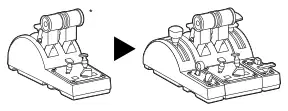
TCA Quadrant Add-On Airbus Edition 모듈을 사용하려면, TCA Quadrant Airbus
Edition(별도 판매)을 소유해야 합니다. TCA Quadrant Add-On Airbus Edition 모듈은
TCA Quadrant Airbus Edition 스로틀 쿼드런트의 확장 모듈로, TCA Quadrant Airbus
Edition 의 양 측면에 연결되는 경우에만 작동합니다.
이러한 모듈 방식은 새로운 축과 동작 버튼을 추가해 TCA Quadrant Airbus
Edition 의 운동 역학(이륙, 비행 및 착륙)을 확장하도록 해줍니다.
사용해(미포함) TCA Quadrant Airbus Edition 및 TCA Quadrant Add-On Airbus
Edition 모듈에 동봉된 4 개의 부착형 구성품을 나사로 조여 전체가 하나가
되게 연결합니다.
브레이크를 TCA Quadrant Airbus Edition 의 왼쪽에, 플랩 모듈을 오른쪽에
연결합니다.
3/12

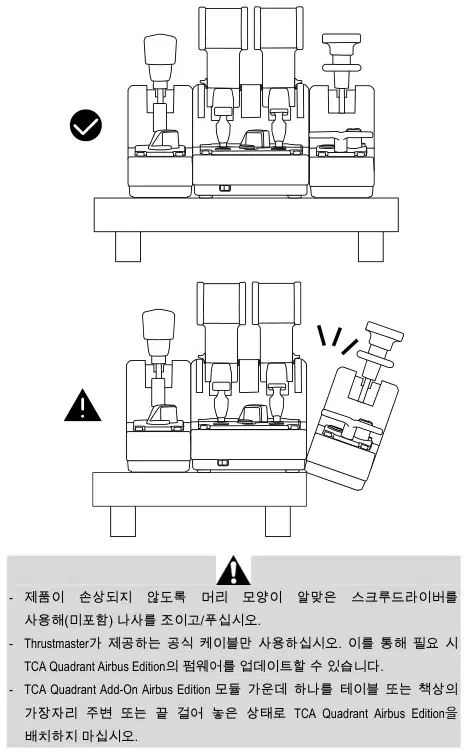
- Thrustmaster가 제공하는 공식 케이블만 사용하십시오. 이를 통해 필요 시
TCA Quadrant Airbus Edition의 펌웨어를 업데이트할 수 있습니다.
- TCA Quadrant Add-On Airbus Edition 모듈 가운데 하나를 테이블 또는 책상의
가장자리 주변 또는 끝 걸어 놓은 상태로 TCA Quadrant Airbus Edition을
4/12

버튼 및 2 개 축 매핑하기
0 up ZR 65536 down
0 up Z 65536 down
6/12
この取扱説明書で参照されているリンク(メーカー、サポート、ダウンロード等)。
ユーザーまたはスタッフが通常1日以内に回答します。あなたの質問が次の人の助けにもなります。
最初の質問を投稿しましょう。他のユーザーや当チームが回答します。