
JA
Solis logo
公式取扱説明書

Solis Wi-Fi Dongle Connection Software

6 ページ·242 KB·アダプター·PDF·EN
Solis Wi-Fi Dongle Connection Software
目次 8セクション SOLIS WI-FI DONGLE · CONNECTION · Using a Mobile Phone · CONNECTING SOLIS WI-FI DONGLE · … 表示非表示
Page 1 of the Solis Wi-Fi Dongle Connection Software user manual — CONNECTION
1ページ · クリックして拡大
1ページ
Solis Wi-Fi Dongle Connection Software — SOLIS WI-FI DONGLE diagram (page 1)
図 1

SOLIS WI-FI DONGLE

Solis Wi-Fi Dongle Connection Software — SOLIS WI-FI DONGLE diagram (page 1)
図 2

CONNECTION

Using a Mobile Phone

Solis Wi-Fi Dongle Connection Software — CONNECTION diagram (page 1)
図 3
Solis Wi-Fi Dongle Connection Software — CONNECTION diagram (page 1)
図 4
Page 2 of the Solis Wi-Fi Dongle Connection Software user manual — STEP 3:
2ページ · クリックして拡大
2ページ
Solis Wi-Fi Dongle Connection Software — CONNECTING SOLIS WI-FI DONGLE diagram (page 2)
図 5

CONNECTING SOLIS WI-FI DONGLE

STEP 1:

  • Make sure you have the details of your home Wi-Fi network (name and password).
  • Make sure your Wi-Fi password does not contain any symbols or special characters like: < . , ! ? @ # $ % “ ‘ - _ > etc.
  • Your Wi-Fi router should operate on 2.4GHz frequency.
  • Take your phone close to the inverter.

STEP 2:

  • Turn OFF your Mobile Data. (iPhone: Go to Settings<Mobile<Mobile Data<Off) (Android: Go to Settings<Connections<Data Usage<Mobile Data<Off)

STEP 3:

  • Forget your home Wi-Fi connection. (make sure you know the password before going forward with this step) (Go to Settings<Wi-Fi<Select your home Wi-Fi<Choose Forget) There will be two options available, disconnect or forget, make sure you select FORGET and NOT disconnect.
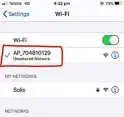
4. The Wi-Fi dongle will show up as a Wi-Fi network (AP_XXXXXXXXX) in your available network list, in the Wi-Fi settings.
Solis Wi-Fi Dongle Connection Software — STEP 3: diagram (page 2)
図 6
1 Webwww.solisinverters.com.au Ph: 03 8555 9516 E: service@ ginlongaust.com .au
Page 3 of the Solis Wi-Fi Dongle Connection Software user manual — CONNECTING SOLIS WI-FI DONGLE
3ページ · クリックして拡大
3ページ
5. Click and join the AP_XXXXXXXXX network.
Solis Wi-Fi Dongle Connection Software — CONNECTING SOLIS WI-FI DONGLE diagram (page 3)
図 7
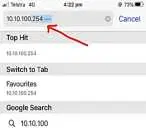
6. Open Safari or Google Chrome Browser and type IP address 10.10.100.254 on the search bar. Then Press Go.
Solis Wi-Fi Dongle Connection Software — CONNECTING SOLIS WI-FI DONGLE diagram (page 3)
図 8
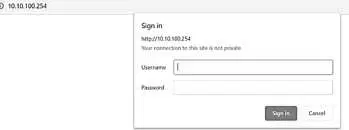
7. You should get a screen prompt asking for username and password.
Usernameadmin
Passwordadmin

Then Press Sign in.

Solis Wi-Fi Dongle Connection Software — CONNECTING SOLIS WI-FI DONGLE diagram (page 3)
図 9
2 Webwww.solisinverters.com.au Ph: 03 8555 9516 E: service@ ginlongaust.com .au
Page 4 of the Solis Wi-Fi Dongle Connection Software user manual — CONNECTING SOLIS WI-FI DONGLE
4ページ · クリックして拡大
4ページ
8. You will see a screen as shown below. From the top left corner, press WIZARD (second option).
Solis Wi-Fi Dongle Connection Software — CONNECTING SOLIS WI-FI DONGLE diagram (page 4)
図 10
9. You will see a table containing Wi-Fi names.

Select your Wi-Fi name and ensure that the RSSI (3rd column in the table) is more than 30%.

Click Next once you have selected your network.

10. Enter your home Wi-Fi’s password. This password should be of your home Wi-Fi network you selected in the previous step. To verify, click Show Password as shown. You do not need to change anything else, apart from the password in this step. Then Click Next.
Solis Wi-Fi Dongle Connection Software — CONNECTING SOLIS WI-FI DONGLE diagram (page 4)
図 11
3 Webwww.solisinverters.com.au Ph: 03 8555 9516 E: service@ ginlongaust.com .au
Page 5 of the Solis Wi-Fi Dongle Connection Software user manual — CONNECTING SOLIS WI-FI DONGLE
5ページ · クリックして拡大
5ページ
11. Once you have entered the password, you will see a ‘Enhance Security’ screen as shown below. You do not need to change anything here. Click Next.
Solis Wi-Fi Dongle Connection Software — CONNECTING SOLIS WI-FI DONGLE diagram (page 5)
図 12
12. If all the steps done above are correct, you will be redirected to ‘Setting Complete’ page. Click Ok option.

(It is necessary to click OK since without that the whole process will be incomplete.)

After you have pressed OK, wait 10-20 seconds.

Solis Wi-Fi Dongle Connection Software — CONNECTING SOLIS WI-FI DONGLE diagram (page 5)
図 13
4 Webwww.solisinverters.com.au Ph: 03 8555 9516 E: service@ ginlongaust.com .au
Page 6 of the Solis Wi-Fi Dongle Connection Software user manual — ‘ALL DONE’
6ページ · クリックして拡大
6ページ
13. After 10-20 seconds, you should get a message ‘’Settings complete! Please close this page manually!”
Solis Wi-Fi Dongle Connection Software — ‘ALL DONE’ diagram (page 6)
図 14

To close this page manually you will need to the following:

Click on this symbol for iPhone and then click cross symbol.

Click on this symbol for Google Chrome and then click on cross symbol.

14. Open your Wi-Fi networks and Switch Off the Wi-Fi on your phone for 3-5 min.
  • Turn ON the Wifi on your phone.
  • Check if you are still connected to AP_XXXXXXXXX or is AP_XXXXXXXXX still visible. (Also, you should NOT be connected to your home network.)
  • If you can see/connected to the AP_XXXXXXXXX network, the setup was NOT done properly.
  • Confirm your home Wi-Fi password and ensure that you are using 2.4 GHz internet.
  • Repeat all the steps again.
15. Refer to ‘SOLIS Customer Monitoring Account Setup’ PDF shared with you to create an account on the web portal after completing all the steps. OR use Solis Home app to register an account and build a plant.

‘ALL DONE’

5 Webwww.solisinverters.com.au Ph: 03 8555 9516 E: service@ ginlongaust.com .au
情報源

参考資料・リンク

この取扱説明書で参照されているリンク(メーカー、サポート、ダウンロード等)。

Solis Wi-Fi Dongle Connection Softwareについて質問する

ユーザーまたはスタッフが通常1日以内に回答します。あなたの質問が次の人の助けにもなります。

Add your email to get notified when it’s answered — no spam, ever.

0 questions
Solis Wi-Fi Dongle Connection Softwareに関する質問はまだありません

最初の質問を投稿しましょう。他のユーザーや当チームが回答します。

原本

Solis Wi-Fi Dongle Connection Software 取扱説明書(PDF)

6 ページ·242 KB·アダプター·PDF
上のページをクリックするとここに表示されます
ページ 1 / …
100%
ページを読み込み中…