



USB Flash Drive Access Procedure for M1 MINI PLUS and M1 MINI PLUS -2 Projector

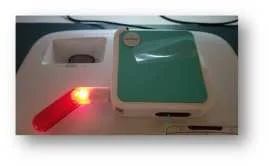
Insert the USB flash drive into the USB port on the side of the projector.

At the HOME screen, use the remote arrow keys to select and highlight the File Management block on the left hand side of the screen. The box will enlarge. Then press the OK key.


The File Management screen will appear. The Local Storage icon will be highlighted in green and the first folder Alarms on the right pane will also be highlighted in green.
Tommy W. Jue, E.I.T. Page 1 of 4 September 21, 2022 Manager, Quality & Technical Lab ViewSonic Corporation

USB Flash Drive Access Procedure for M1 MINI PLUS and M1 MINI PLUS -2 Projector

Press the return key on the remote. This will leave just the Local Storage icon highlighted in green.


Press the down arrow key on the remote to select the USB flash drive. This will highlight the USB icon in green.

Tommy W. Jue, E.I.T. Page 2 of 4 September 21, 2022 Manager, Quality & Technical Lab ViewSonic Corporation

USB Flash Drive Access Procedure for M1 MINI PLUS and M1 MINI PLUS -2 Projector

Press the right arrow key on the remote to highlight the first folder or file in green.


Press the down arrow key on the remote to highlight the folder or file you want. Then press the OK key.
Tommy W. Jue, E.I.T. Page 3 of 4 September 21, 2022 Manager, Quality & Technical Lab ViewSonic Corporation

USB Flash Drive Access Procedure for M1 MINI PLUS and M1 MINI PLUS -2 Projector
Press the up and down arrow keys to select the file you want to play. Then press the OK key.


Task complete.
EOF.
Tommy W. Jue, E.I.T. Page 4 of 4 September 21, 2022 Manager, Quality & Technical Lab ViewSonic Corporation
ユーザーまたはスタッフが通常1日以内に回答します。あなたの質問が次の人の助けにもなります。
最初の質問を投稿しましょう。他のユーザーや当チームが回答します。