




Please read and keep all safety and use instructions.
Contains small parts which may be a choking hazard. Not suitable for children under age 3.
Follow all instructions provided with your headphones.
Do not use your headphones at a high volume for any extended period. To avoid hearing damage, use your headphones at a comfortable, moderate volume level. Turn the volume down on your device before placing the headphones in/on your ears, then turn the volume up gradually until you reach a comfortable listening level.
Do not make unauthorized alterations to this product.
To reduce the risk of fire or electrical shock, do not expose this product to rain, liquids or moisture.
Do not expose this product to dripping or splashing, and do not place objects filled with liquids, such as vases, on or near the product.

Information About Products That Generate Electrical Noise (FCC Compliance Notice for US):
NOTE: This equipment has been tested and found to comply with the limits for a Class B digital device, pursuant to Part 15 of the FCC Rules. These limits are designed to provide reasonable protection against harmful interference in a residential installation. This equipment generates, uses, and can radiate radio frequency energy and, if not installed and used in accordance with the instructions, may cause harmful interference to radio communications. However, there is no guarantee that interference will not occur in a particular installation. If this equipment does cause harmful interference to radio or television reception, which can be determined by turning the equipment off and on, the user is encouraged to try to correct the interference by one or more of the following measures:
Changes or modifications not expressly approved by Bose Corporation could void the user’s authority to operate this equipment.
This device complies with part 15 of the FCC Rules and with Industry Canada license-exempt RSS standard(s). Operation is subject to the following two conditions: (1) This device may not cause harmful interference, and (2) this device must accept any interference received, including interference that may cause undesired operation.
This device complies with FCC and Industry Canada radiation exposure limits set forth for general population. This transmitter must not be co-located or operating in conjunction with any other antenna or transmitter.
Bose Corporation hereby declares that this product is in compliance with the essential requirements and other relevant provisions of Directive 2014/53/EU and all other applicable EU directive requirements. The complete declaration of conformity can be found at: www.Bose.com/compliance
For Europe:
Frequency band of operation 2400 to 2483.5 MHz:
Bluetooth: Maximum transmit power less than 20 dBm EIRP.
This symbol means the product must not be discarded as household waste, and should be delivered to an appropriate collection facility for recycling. Proper disposal and recycling helps protect natural resources, human health and the environment. For more information on disposal and recycling of this product, contact your local municipality, disposal service, or the shop where you bought this product.
Management Regulation for Low-power Radio-frequency Devices Article XII According to “Management Regulation for Low-power Radio-frequency Devices” without permission granted by the NCC, any company, enterprise, or user is not allowed to change frequency, enhance transmitting power or alter original characteristic as well as performance to an approved low power radio-frequency devices.
Article XIV The low power radio-frequency devices shall not influence aircraft security and interfere legal communications; If found, the user shall cease operating immediately until no interference is achieved. The said legal communications means radio communications operated in compliance with the Telecommunications Act.
The low power radio-frequency devices must be susceptible with the interference from legal communications or ISM radio wave radiated devices.

China Restriction of Hazardous Substances Table
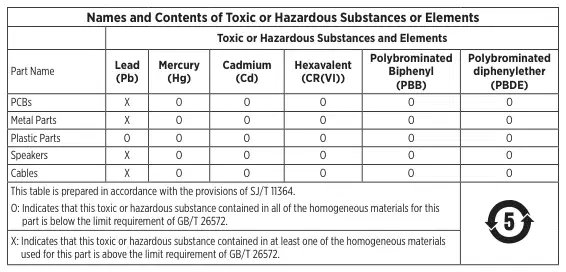
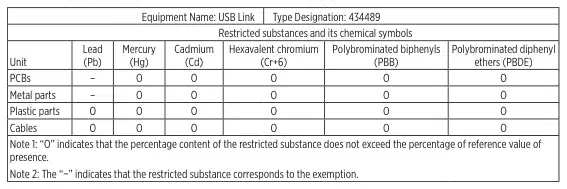
Date of Manufacture: The eighth digit in the serial number indicates the year of manufacture; “0” is 2010 or 2020.
China Importer: Bose Electronics (Shanghai) Company Limited, Part C, Plant 9, No. 353 North Riying Road, China (Shanghai) Pilot Free Trade Zone
Mexico Importer: Bose de México, S. de R.L. de C.V., Paseo de las Palmas 405-204, Lomas de Chapultepec, 11000 México, D.F. For service or importer information, call +5255 (5202) 3545.
Taiwan Importer: Bose Taiwan Branch, 9F-A1, No. 10, Section 3, Minsheng East Road, Taipei City 104, Taiwan Phone Number: +886-2-2514 7676

Apple, the Apple logo, and macOS are trademarks of Apple Inc. registered in the U.S. and other countries.
App Store is a service mark of Apple Inc.
The Bluetooth® word mark and logos are registered trademarks owned by Bluetooth SIG, Inc. and any use of such marks by Bose Corporation is under license.
Google Play is a trademark of Google LLC. All other trademarks are the property of their respective owners.
Bose and Bose Music are trademarks of Bose Corporation.
All other trademarks are the property of their respective owners.
The Bose Privacy Policy is available on the Bose website.
©2020 Bose Corporation. No part of this work may be reproduced, modified, distributed or otherwise used without prior written permission.


SET UP THE BOSE USB LINK
standard USB-A-to-C adapter or USB hub to make this connection.
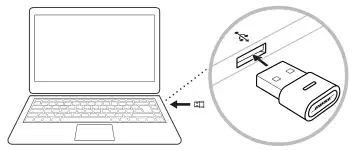
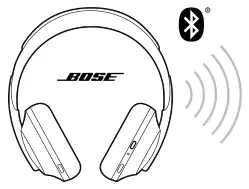

You can use Bose headphones with Bluetooth connectivity with the Bose USB Link. The USB Link can be actively connected to one set of headphones at a time.
able to connect to multiple Bluetooth devices at the same time. This is called multipoint connectivity. This would enable you to connect your headphones to the Bose USB Link and a mobile device at the same time.
headphones are connected to the USB Link.
The status indicator on the Bose USB Link shows its current status.
Bose USB Link light

CONNECT THE BOSE USB LINK TO A COMPUTER
Insert the Bose USB Link into a USB port on your computer. The status indicator on the USB Link will blink.
standard USB-A-to-C adapter or USB hub to make this connection.
Bose USB Link), visit worldwide.Bose.com/support and find the product page for your headphones.
after approximately 5 minutes, the status indicator will stop blinking. If you want to connect another set of Bose Bluetooth headphones, repeat the actions above.
You can store up to eight devices (headphones) in the device list of the Bose USB Link.
If the USB Link has already been used with other headphones, remove the USB Link from the USB port on your computer, and then reinsert it. The USB Link will try to reconnect to previously connected sets of headphones. The status indicator will blink blue rapidly while connecting.
To clear the Bluetooth device list stored on the Bose USB Link, press and hold the button on the USB Link for 7–10 seconds. When the device list is cleared, the status indicator will pulse blue slowly to indicate it is ready to connect to another Bluetooth device.

CLEAN THE BOSE USB LINK
The Bose USB Link may require periodic cleaning.
The headphones and Bose USB Link are covered by a limited warranty. Visit our website at global.Bose.com/warranty for details of the limited warranty.
To register your product, visit global.Bose.com/register for instructions. Failure to register will not affect your limited warranty rights.
The serial and model numbers are located on the product carton.
The serial number can also be accessed using the Bose USB Link firmware updater.

TRY THESE SOLUTIONS FIRST
If you experience problems with the Bose USB Link try these solutions first:
If you could not resolve your issue, see the table below to identify symptoms and solutions to common problems. If you are unable to resolve your issue, contact Bose customer service.

PROBLEM WHAT TO DO
Wait approximately 30 seconds for your computer to register the USB Link as a microphone, speaker, and camera device.
If this still does not work, try the following solutions:
Bose USB Link is not listed as a speaker in my meeting app.
Your computer may not have the USB Link selected as the default audio playback device (even if your meeting app is working properly with the USB Link).
Adjusting the volume on my com- puter has no effect on the volume of the Bose USB Link.
The status light on the Bose USB Link is solid blue, purple, or red, but my headphones are not connected.
Clear the device list on the USB Link (see page 10), and then try to connect your headphones again (see page 10).

RESTORE THE FACTORY DEFAULT SETTINGS
If the Bose USB Link is unresponsive or not functioning as expected, you can restore its factory default settings. Restoring the factory default settings will clear the USB Link device list.
Press and hold the button on the USB Link for 7–10 seconds.
You may occasionally need to update the firmware installed on the Bose USB Link. If you experience any issues related to Bluetooth connectivity, integration with your meeting app, or audio quality, update the firmware to see if that fixes the issue.
To download, install, and use the Bose USB Link Updater app on your computer:
Also, make sure your Bose headphones have the most current software installed on them. To do this, download and open the Bose Music app or Bose Connect app. (Each app supports different models of Bose headphones. Check the list of supported models for each app in its description on the App StoreSM or on the Google Play™ store.)
We also recommend making sure the meeting software and operating system on your computer is up to date.

Apple、Apple 徽标以及 macOS 是 Apple Inc. 在美国和其他国家/地区注册的商标。
App Store 是 Apple Inc. 的服务标志。
Bluetooth® 文字标记和徽标是 Bluetooth SIG, Inc. 所拥有的注册商标,Bose Corporation 根据许可规定使
Google Play 是 Google LLC 的商标。所有其他商标均是其各自所有者的财产。
Bose 和 Bose Music 是 Bose Corporation 的商标。
可在 Bose 网站查看 Bose 隐私政策。
©2020 Bose Corporation。未经事先书面许可,不得复制、修改、发行或以其它方式使用本指南的 任何部分。


内件
请确认包装箱中内含以下部件:
Bose USB Link 快速启动指南

设置 BOSE USB LINK
至 -C 适配器或 USB 集线器完成此连接。

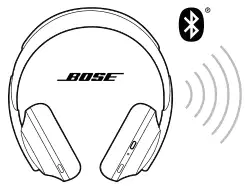


您可通过 Bose USB Link 使用具有 Bluetooth 连接能力的 Bose 耳机。USB Link 每次 只能主动连接一组耳机。
能。这称为多点连接。这样您可以将耳机同时连接到 Bose USB Link 和一台移 动设备。
连接状态
Bose USB Link 上的状态指示灯会显示当前状态。
Bose USB Link 指示灯
慢闪蓝色光 USB Link 已准备好连接耳机。
快闪蓝色光 USB Link 正在连接一组耳机。
常亮蓝色光 USB Link 已连接到耳机。
常亮紫色光 USB Link 已连接到 Bose Noise Cancelling Headphones 700 (或 700 UC),并且电脑已登录 Microsoft Teams 帐户。
USB Link 已连接到 Bose Noise Cancelling Headphones 700 (或 700 UC),电脑已登录 Microsoft Teams 帐户并且正在
接收通知。
常亮红色光 USB Link 已连接到 Bose Noise Cancelling Headphones 700 (或 700 UC),其麦克风已被静音。

将 BOSE USB LINK 连接到计算机
将 Bose USB Link 插入电脑上的 USB 端口。USB Link 上的状态指示灯将会闪烁。
至 -C 适配器或 USB 集线器完成此连接。
连接一组耳机
worldwide.Bose.com/support 并查找您的耳机产品页面。
停止闪烁。如果您要连接另一组 Bose Bluetooth 耳机,请重复上面的操作。
Bose USB Link 的设备列表中最多可以存储八台设备(耳机)。
如果 USB Link 已被其他耳机使用,请将 USB Link 从电脑的 USB 端口上取下,然后 重新插入。USB Link 将尝试重新连接之前连接的耳机。连接时状态指示灯将快速闪 烁蓝色。
要清空 Bose USB Link 上保存的 Bluetooth 设备列表,按住 USB Link 上的按钮 7-10 秒 即可。清空设备列表后,状态指示灯会慢闪蓝色,表示其准备连接另一台 Bluetooth 设备。

清洁 BOSE USB LINK
Bose USB Link 可能需要进行定期清洁。
耳机和 Bose USB Link 享受有限质保。有关有限质保的详情,请访问我们的网站: global.Bose.com/warranty。
要注册产品,请访问 global.Bose.com/register,了解有关说明。未进行注册并不影 响您的有限质保权利。
还可使用 Bose USB Link 固件更新程序查看序列号。

Apple、Apple 徽標以及 macOS 是 Apple Inc. 在美國和其他國家/地區註冊的商標。
App Store 是 Apple Inc. 的服務標記。
Bluetooth® 文字標記和徽標是由 Bluetooth SIG, Inc. 所擁有的註冊商標,Bose Corporation 對上述標記的
Google Play 是 Google LLC 的商標。所有其他商標均是其各自所有者的財產。
Bose 和 Bose Music 是 Bose Corporation 的商標。
可在 Bose 網站查看 Bose 隱私權政策。
©2020 Bose Corporation。未經預先書面許可,不得複製、修改、發行或以其他方式使用本指南之 任何部分。


內件
請確認包裝箱中內含以下組件:
Bose USB Link 快速啟動指南

設定 BOSE USB LINK
USB-A至 -C 配接器或 USB 集線器完成此連接。


您可透過 Bose USB Link 使用具有 Bluetooth 連接能力的 Bose 耳機。USB Link 每次 只能主動連接一組耳機。
能。這稱為多點連接。這樣您可以將耳機同時連接至 Bose USB Link 和一台行 動裝置。
連接狀態
Bose USB Link 上的狀態指示燈會顯示目前狀態。
Bose USB Link 指示燈
慢閃藍色光 USB Link 已準備好連接耳機。
快閃藍色光 USB Link 正在連接一組耳機。
恆亮藍色光 USB Link 已連接至耳機。
恆亮紫色光 USB Link 已連接至 Bose Noise Cancelling Headphones 700 (或 700 UC),並且電腦已登入 Microsoft Teams 帳戶。
USB Link 已連接至 Bose Noise Cancelling Headphones 700 (或 700 UC),電腦已登入 Microsoft Teams 帳戶並且正在
接收通知。
恆亮紅色光 USB Link 已連接至 Bose Noise Cancelling Headphones 700 (或 700 UC),其麥克風已被靜音。

將 BOSE USB LINK 連接至電腦
將 Bose USB Link 插入電腦上的 USB 連接埠。USB Link 上的狀態指示燈將會閃爍。
USB-A至 -C 配接器或 USB 集線器完成此連接。
連接一組耳機
worldwide.Bose.com/support 並查找您的耳機產品頁面。
停止閃爍。如果您要連接另一組 Bose Bluetooth 耳機,請重複上面的操作。
Bose USB Link 的裝置清單中最多可以存儲八台裝置(耳機)。
如果 USB Link 已被其他耳機使用,請將 USB Link 從電腦的 USB 連接埠上取下,然 後重新插入。USB Link 將嘗試重新連接之前連接的耳機。連接時狀態指示燈將快速 閃爍藍色。
要清空 Bose USB Link 上儲存的 Bluetooth 裝置清單,按住 USB Link 上的按鈕 7-10 秒 即可。清空裝置清單後,狀態指示燈會慢閃藍色,表示其準備連接另一台 Bluetooth 裝置。

清潔 BOSE USB LINK
Bose USB Link 可能需要進行定期清潔。
要註冊產品,請造訪 global.Bose.com/register,了解相關指示。未執行註冊並不影 響您的有限保固權利。
還可使用 Bose USB Link 韌體更新程式查看序號。
この取扱説明書で参照されているリンク(メーカー、サポート、ダウンロード等)。
よくあるトラブル、考えられる原因、対処法。
| 問題 | 考えられる原因 | 対処法 | |
|---|---|---|---|
| The sound is too quiet or not audible at all. | The volume may be too low. Raise the volume in any of the following places: • on your Bose Bluetooth headphones • in your meeting software or computer If you still hear no sound, make sure Bose USB Link is selected as the speaker in your meeting software. | p.12 | |
| Nothing happens when I press the button on the Bose USB Link. | If you are trying to connect another set of headphones to the USB Link, press and hold the button for at least 3 seconds before releasing it (see page 10). Make sure you are not in a meeting when you press the button. Otherwise, USB Link will not respond so as not to interrupt the meeting. | p.12 | |
| Bose USB Link is not listed as a speaker in my meeting app. | Wait approximately 30 seconds for your computer to register the USB Link as a microphone, speaker, and camera device. If this still does not work, try the following solutions: • Try connecting the USB Link to a difefrent USB port on your computer. • Make sure the USB Link is connected securely to the USB port. | p.13 | |
| Adjusting the volume on my com- puter has no efefct on the volume of the Bose USB Link. | Your computer may not have the USB Link selected as the default audio playback device (even if your meeting app is working properly with the USB Link). • Windows: Click the speaker icon in the system tray (in the taskbar) and select Bose USB Link as the playback device. • macOS: Click the Apple icon in the upper-left corner of the screen, and select System Preferences, click Sound, and then click Output. Select Bose USB Link in the list of devices. | p.13 | |
| The status light on the Bose USB Link is solid blue, purple, or red, but my headphones are not connected. | Clear the device list on the USB Link (see page 10), and then try to connect your headphones again (see page 10). | p.13 |
ユーザーまたはスタッフが通常1日以内に回答します。あなたの質問が次の人の助けにもなります。
最初の質問を投稿しましょう。他のユーザーや当チームが回答します。