




Click here to access an up-to-date online version of this document. You will also find the most recent content as well as expandable illustrations, easier navigation, and search capability.


For common questions and answers about your hard drive, see Frequently Asked Questions or visit LaCie customer support.
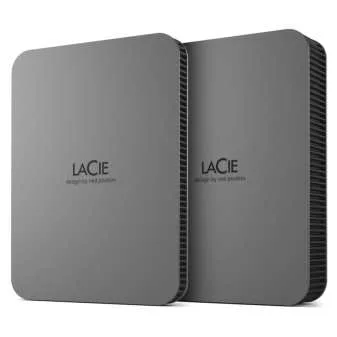
LaCie Mobile Drive Secure USB-C cable Quick start guide
Ports
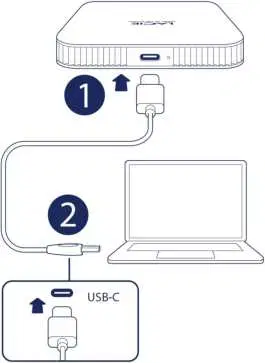
Use the included cable to connect your LaCie device to a computer with a USB-C port.
Go to Operating System Requirements for Seagate Hardware & Software.
600MB recommended.

Connect the USB cable
Use the USB-C cable to connect LaCie Mobile Drive to a computer’s USB-C port.
The setup process lets you:
Register your LaCie Mobile Drive Secure Get the most from your drive with easy access to information and support.

Install Toolkit Manage security, mirror folders, backup plans (Windows only), and more.
Your computer must be connected to the internet to register your device and install Toolkit.
Using a file manager such as Finder or File Explorer, open LaCie Mobile Drive Secure and launch Start Here Win or Start Here Mac.

If your drive no longer has a Start Here icon, you can register your device on lacie.com. Toolkit can be downloaded from the Toolkit support page.


Enter your information and click Register.

Click the Download button.
Using a file manager such as Finder or File Explorer, go to the folder where you receive downloads.
Open the LaCieToolkit.zip file. Click on the LaCie Toolkit Installer to launch the application.
Click on the LaCieToolkit.exe file to launch the application.


Toolkit provides useful tools that let you easily manage security, set up backup plans and mirror folders, and more.
Toolkit is required to enable security for LaCie Mobile Drive Secure. Be sure to install Toolkit in order to password-protect your device using Seagate Secure 256-bit encryption.
Click here for details on enabling security.
Create a plan customized for the content, storage device, and schedule of your choosing.
Click here for details on setting up a backup plan.
Create a mirror folder on your PC or Mac that is synced to your storage device. Whenever you add, edit, or delete files in one folder, Toolkit automatically updates the other folder with your changes.
Click here for details on creating a mirror folder.

Always eject a storage drive from your computer before physically disconnecting it. Your computer must perform filing and housekeeping operations on the drive before it is removed. Therefore, if you unplug the drive without using the operating system’s software, your files can become corrupt or damaged.
Use the Safely Remove tool to eject a device.
There are several ways you can eject your device from a Mac. See below for two options.



Your device is preformatted exFAT (Extended File Allocation Table) for compatibility with both Mac and Windows computers.
When choosing a file system format, consider whether compatibility or performance is more important in your everyday use of the drive.
Compatibility—You need a cross-platform format because you connect your drive to both PCs and Macs. Performance—You connect your drive with only one type of computer, so you can optimize file copy performance by formatting the drive in the native file system for your computer operating system.
exFAT is a lightweight file system compatible with all versions of Windows and modern versions of macOS. If you use your drive with both PCs and Macs, format your drive in exFAT. While exFAT offers cross- platform access to both computers, keep in mind the following:
exFAT is not compatible or recommended for built-in backup utilities such as File History (Windows) and Time Machine (macOS). If you want to use one of these backup utilities, you should format the drive in the native file system for the computer running the utility. exFAT is not a journaled file system, which means it can be more susceptible to data corruption when errors occur or the drive is not disconnected properly from the computer.
NTFS (New Technology File System) is a proprietary journaling file system for Windows. macOS can read NTFS volumes, but it can't natively write to them. This means your Mac can copy files from an NTFS- formatted drive, but it can't add files to or remove files from the drive. If you need more versatility than this one-way transfer with Macs, consider exFAT.
Apple offers two proprietary file systems.
Mac OS Extended (also known as Heirarchical File System Plus or HFS+) is an Apple file system used since 1998 for mechanical and hybrid internal drives. macOS Sierra (version 10.12) and earlier use HFS+ by

default.
APFS (Apple File System) is an Apple file system optimized for solid state drives (SSDs) and flash-based storage systems, though it also works with hard disk drives (HDDs). It was first introduced with the release of macOS High Sierra (version 10.13). APFS can only be read by Macs running High Sierra or later.
When choosing between Apple file systems, consider the following:
Windows cannot natively read or write to APFS or HFS+ volumes. If you need cross-platform compatibility, you should format the drive in exFAT. If you intend to use your drive with Time Machine:
The default format for macOS Big Sur (version 11) and later is APFS. The default format for macOS Catalina (version 10.15) and earlier is HFS+. If you intend to use your drive to move files between Macs running older OS versions, consider formatting your drive in HFS+ rather than APFS. macOS file systems and Android: Formatting your drive for macOS may not be supported with connections to Android mobile devices.
For additional considerations when choosing a file system format, see File System Format Comparisions.
For instructions on formatting your drive, see How to format your drive.

Your LaCie storage devices can be used with higher-end iPads. This is a great option for moving files between computers, cloud services and external storage. The iPad is also a perfect mobile editing station for importing media to more advanced imaging and video apps.
See External Storage and iPadOS for details on the following:
Connecting Storage to Compatible iPads Available Actions Selecting Multiple Items Accessing Storage Devices in an App Supported External Storage Devices and USB Hubs External Storage Performance on iPad Versus a Computer Thunderbolt Storage Devices Battery Use Ejecting Storage Formats Password Protection Toolkit and First Use Connections

For help setting up and using your LaCie hard drive, review the frequently asked questions below. For additional support resources, go to LaCie customer support.
Problem: My file transfers are too slow
Q: Are both ends of the USB cable firmly attached?
A: Review troubleshooting tips for cable connections below:
Check both ends of the USB cable and make sure that they are fully seated in their respective ports. Try disconnecting the cable, waiting 10 seconds, and then reconnecting it. Try a different USB cable.
Q: Are there other USB devices connected to the same port or hub?
A: Disconnect other USB devices and see if the hard drive’s performance improves.
Q: Will my hard drive’s USB 3.2 Gen 1 port work with my computer’s USB 3.0 port?
A: Yes, the device is compatible with USB 3.0 ports, however, the product does not include a cable with a USB Type A connector.
Q: Can I use my hard drive with a USB hub?
A: Yes, the hard drive can be connected to a USB hub. If you use a hub and encounter detection problems, slower than normal transfer rates, random disconnection from your computer or other unusual issues, try connecting the hard drive directly to the computer’s USB port.
Some USB hubs are less than efficient with power management, which can be problematic for connected

devices. In such a case, consider trying a powered USB hub that includes a power cable.
Q: Can I use my hard drive with a longer cable?
A: Yes, provided it is certified according to USB standards. However, LaCie recommends using the cable shipped with your hard drive for the best results. If you use a longer cable and experience problems with detection, transfer rates or disconnection, use the original cable included with your hard drive.
Q: Did you get an “Error -50” message while copying to a FAT32 volume?
A: When copying files or folders from a computer to a FAT32 volume, certain characters in the names cannot be copied. These characters include, but are not limited to: ? < > / \ :
Check your files and folders to ensure that these characters are not in the names.
If this is a recurring problem or you cannot find files with incompatible characters, consider reformatting the drive to NTFS (Windows users) or HFS+ (Mac users). See Optional Formatting and Partitioning.
Q: Did you get an error message telling you that the drive has been disconnected when coming out of sleep mode?
A: Ignore this message since the drive remounts on the desktop despite the pop-up. LaCie drives conserve power by spinning down when you set your computer to sleep mode. When the computer awakes from sleep mode, the drive may not have enough time to spin up, causing the pop-up to appear.
Problem: The hard drive icon does not appear on my desktop
Q: Is your Finder configured to hide hard drives on the desktop?
A: Go to Finder and then check Preferences | General tab | Show these items on the desktop. Confirm that Hard Disks is selected.
Q: Is your hard drive mounting in the operating system?

A: Open Disk Utility at Go | Utilities | Disk Utility. If the hard drive is listed in the left-hand column, check your Finder preferences to see why it is not displayed on the desktop (review the question above).
Q: Does your computer’s configuration meet the minimum system requirements for use with this hard drive?
A: Go to the following link for a list of supported operating systems: www.lacie.com/os
Q: Did you follow the correct installation steps for your operating system?
A: Review the installation steps in Getting Started.
Problem: I want to use Mobile Drive Secure with Time Machine.
Q: Can I use Mobile Drive Secure with Time Machine?
A: Yes. The drive is preformatted exFAT for use with both PC and Mac. For Time Machine, it must be reformatted to Mac. Reformatting will delete all data previously stored on the drive. Go to www.lacie.com/time-machine for more details.
Problem: The hard drive icon doesn’t appear in Computer
Q: Is the hard drive listed in Device Manager?
A: All drives appear in at least one place in Device Manager.
Type Device Manager in Search to launch it. Look in the Disk Drives section and, if necessary, click the Plus (+) icon to view the full list of devices. If you’re uncertain that your drive is listed, safely unplug it and then reconnect it. The entry that changes is your LaCie hard drive.
Q: Is your hard drive listed next to an unusual icon?
A: Windows Device Manager usually provides information about failures with peripherals. While the Device Manager can assist with troubleshooting most problems, it may not display the exact cause or provide a precise solution.
An unusual icon next to the hard drive can reveal a problem. For example, instead of the normal icon based on the type of device, it has an exclamation point, question mark or an X. Right click this icon and then choose Properties. The General tab provides a potential reason why the device is not working as expected.



Product Name LaCie Mobile Drive Secure
Regulatory Model Number LRD0TUB

China RoHS 2 refers to the Ministry of Industry and Information Technology Order No. 32, effective July 1, 2016, titled Management Methods for the Restriction of the Use of Hazardous Substances in Electrical and Electronic Products. To comply with China RoHS 2, we determined this product’s Environmental Protection Use Period (EPUP) to be 20 years in accordance with the Marking for the Restricted Use of Hazardous Substances in Electronic and Electrical Products, SJT 11364-2014.
中国 RoHS 2 是指 2016 年 7 月 1 日起施行的工业和信息化部令第 32 号“电力电子产品限制使用有害物质管理办 法”。为了符合中国 RoHS 2 的要求,我们根据“电子电气产品有害物质限制使用标识”(SJT 11364-2014) 确定本产品 的环保使用期 (EPUP) 为 20 年。


Taiwan RoHS refers to the Taiwan Bureau of Standards, Metrology and Inspection’s (BSMI’s) requirements in standard CNS 15663, Guidance to reduction of the restricted chemical substances in electrical and electronic equipment. Beginning on January 1, 2018, Seagate products must comply with the “Marking of presence” requirements in Section 5 of CNS 15663. This product is Taiwan RoHS compliant. The following table meets the Section 5 “Marking of presence” requirements.
台灣RoHS是指台灣標準局計量檢驗局(BSMI)對標準CNS15663要求的減排電子電氣設備限用化學物質指引。從2018 年1月1日起,Seagate產品必須符合CNS15663第5節「含有標示」要求。本產品符合台灣RoHS。 下表符合第5節 「含有標示」要求。

この取扱説明書で参照されているリンク(メーカー、サポート、ダウンロード等)。
ユーザーまたはスタッフが通常1日以内に回答します。あなたの質問が次の人の助けにもなります。
最初の質問を投稿しましょう。他のユーザーや当チームが回答します。